A MacBook on a stand next to a 27-inch monitor is one of the most common desk setups. Most people then use the same wallpaper on both screens, and it usually looks wrong on at least one of them: soft on the 5K display, cropped on the ultrawide, or with a carefully placed detail hidden behind the notch. macOS can give every display its own wallpaper. This guide shows how, which size each screen needs, and how to keep both in sync with dark mode.
The short answer
- Open System Settings → Wallpaper.
- Turn Show on all Spaces off. With it on, macOS uses the same wallpaper on every Space and every display.
- Choose the display you want to change and pick an image for it. Repeat for the other display.
- Make each image at the native resolution of its own screen, not one image for both.
Step by step
Turn off "Show on all Spaces"
Apple describes the switch in its Mac User Guide: turn it on "to use the same wallpaper on every desktop space and display". That is handy if you want one picture everywhere. For different images per screen, it has to be off. If you change the wallpaper and the other display changes too, this switch is the reason.
Pick the display, then the picture
With more than one display connected, the Wallpaper settings let you choose which display you are setting the wallpaper for. Select the external monitor and add your own image for it. Then switch to the built-in display and do the same with its own file.
macOS remembers the wallpaper per display and per Space. If you use several desktops in Mission Control, each Space on each display can have its own image. If one desktop suddenly shows an old wallpaper, you are probably on a different Space than the one you changed.
Keep the files where they are
macOS does not copy your image, it points to the file. If you later move or delete it, the display falls back to a default wallpaper. Keep your wallpapers in one fixed folder, for example Pictures/Wallpapers. The article on why a Mac wallpaper stays bright in dark mode covers this and four other common causes.
Which size does each display need?
Every screen needs its own native resolution. A single image stretched to two different panels is always a compromise: macOS scales and crops it, and on a high-density display that scaling makes thin lines and small text look soft.
| Display | Wallpaper size | Aspect ratio |
|---|---|---|
| Studio Display / Studio Display XDR 27″ | 5120 × 2880 | 16:9 |
| Pro Display XDR 32″ | 6016 × 3384 | 16:9 |
| 4K monitor (UHD) | 3840 × 2160 | 16:9 |
| 1440p monitor (QHD) | 2560 × 1440 | 16:9 |
| Ultrawide monitor | 3440 × 1440 | 21:9 |
| 1080p monitor (Full HD) | 1920 × 1080 | 16:9 |
| MacBook Pro 14″ (M6 and 2021–2025) | 3024 × 1964 | about 3:2 |
| MacBook Air 13″ (M2–M5) | 2560 × 1664 | about 3:2 |
The resolutions of Apple's displays come from Apple's technical specifications. Apple released the 2026 Studio Display and the new Studio Display XDR in March, both at 5120 × 2880, and discontinued the Pro Display XDR at the same time. The other monitor rows are the standard panel resolutions. If your monitor is not listed, the native resolution is in its manual or on the manufacturer's spec page. The sizes for every MacBook, including the PROLED models, are in the MacBook wallpaper size table.
The aspect ratio matters more than the resolution
A MacBook screen is close to 3:2, most monitors are 16:9 and ultrawides are 21:9. Put a MacBook-sized image on a 16:9 monitor and macOS fills the screen by cutting off the top and bottom. Put a 16:9 image on an ultrawide and roughly a quarter of its height disappears. Anything you placed carefully near an edge, such as a quote or a logo, can end up outside the visible area.
That is the main reason to make one image per display. If you have to reuse one, pick a design without important details near the edges, such as a soft gradient.
Notch and menu bar
The built-in display of a modern MacBook has a notch or, on the 2026 PROLED MacBook Pro, a Dynamic Island in the menu bar. External monitors have neither, so their wallpaper does not need a dark strip at the top. By default every display also shows its own menu bar, so text and details still belong below the top edge on both screens.
Light and dark on every screen
Dark mode in macOS is a system-wide setting, so all displays switch at the same moment. To have every wallpaper follow along, each display needs a file with both versions inside: a .heic with a light and a dark image and Apple's appearance metadata. When you choose such a file, pick the automatic option in the menu next to the preview, separately for each display. The step-by-step guide shows where it is.
If you use matching colors, the switch looks like one desk changing, not two separate screens. The trick is to keep one color the same across both versions and mainly change the brightness. There are more pairs in the article on choosing colors for a light and dark wallpaper, and the article on how a light and dark wallpaper works explains what is inside the file.
Can one picture span both displays?
System Settings has no option to stretch one picture across several displays. To get a continuous image, you have to split it yourself into one file per display, each in that screen's resolution, and line them up with the physical arrangement in System Settings → Displays. That only works well if both screens have the same height and pixel density. With a MacBook next to a 27-inch monitor the sizes rarely match, so two matching designs usually look better than one image cut in half.
What changes with macOS 27
At WWDC in June, Apple announced explicit support for ultrawide displays in macOS 27, with higher resolutions on supported monitors and display arrangements that macOS remembers when you reconnect. According to AppleInsider, Apple did not say which monitors qualify or whether scaling changes. For wallpapers, the advice stays the same: use the native resolution your monitor reports. Once the arrangement is remembered, each display also keeps its own wallpaper more reliably when you dock and undock.
Make a set for your desk
The Notchwerk generator renders every wallpaper at the exact native resolution of the screen you pick under Your device, including the Studio Display, Pro Display XDR, 4K, 1440p, 1080p and ultrawide monitors. Make one file for the MacBook and one for the monitor with the same template and colors, and you have a matching pair that switches between light and dark on its own.
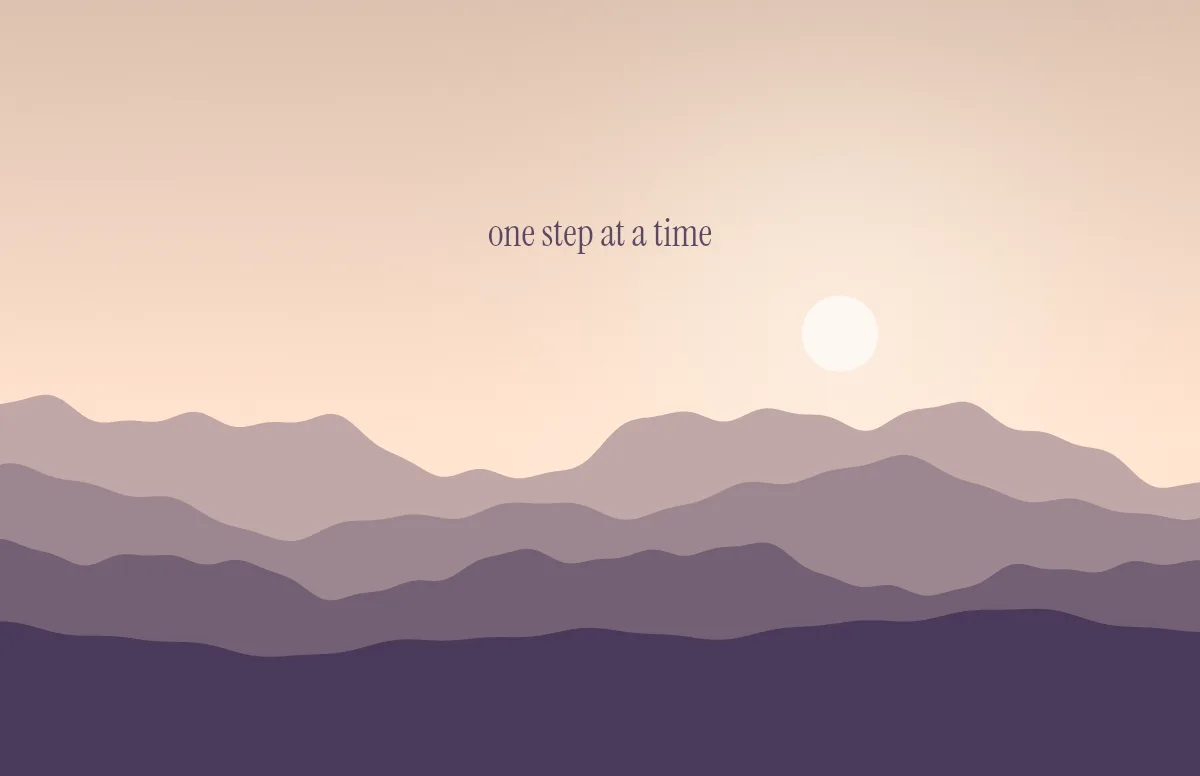
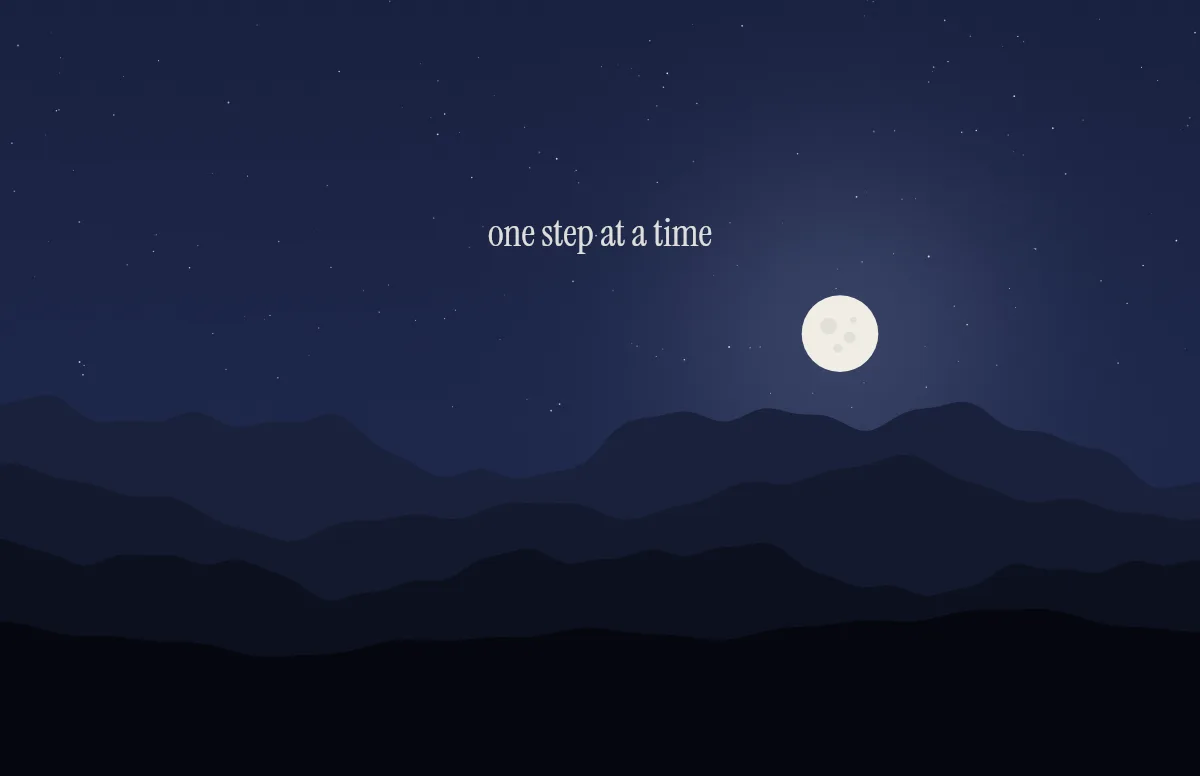
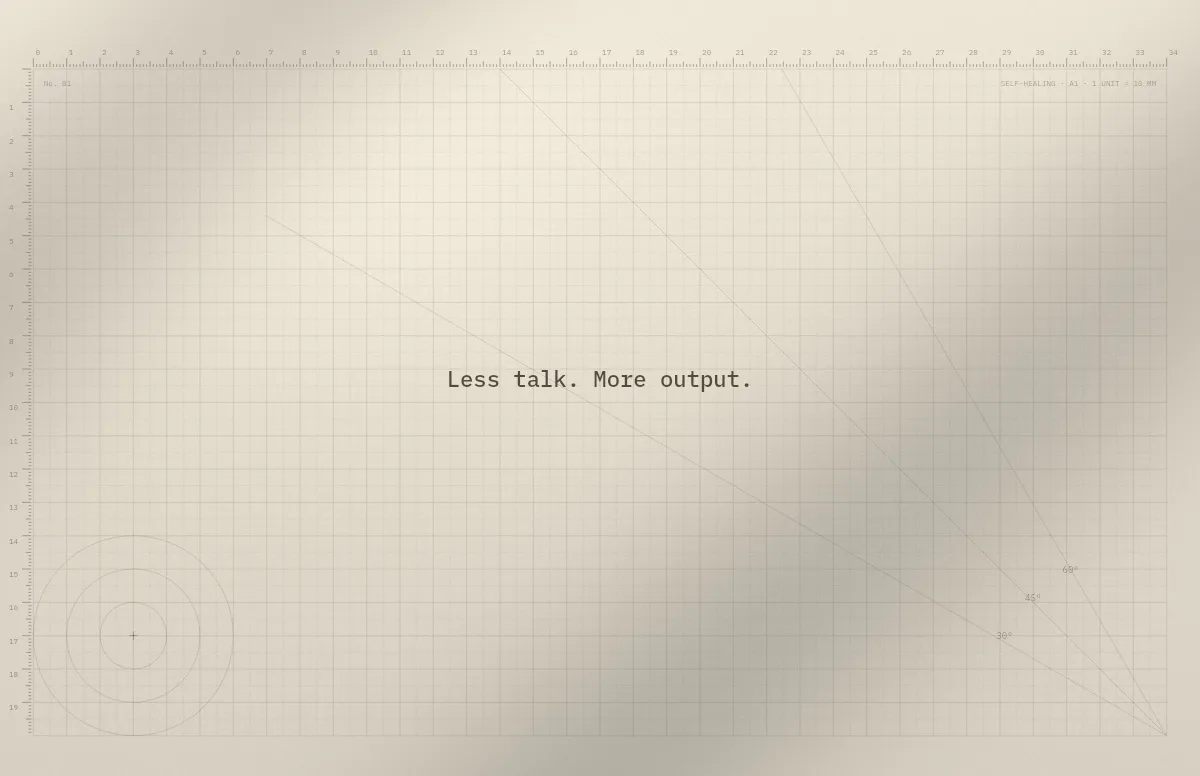
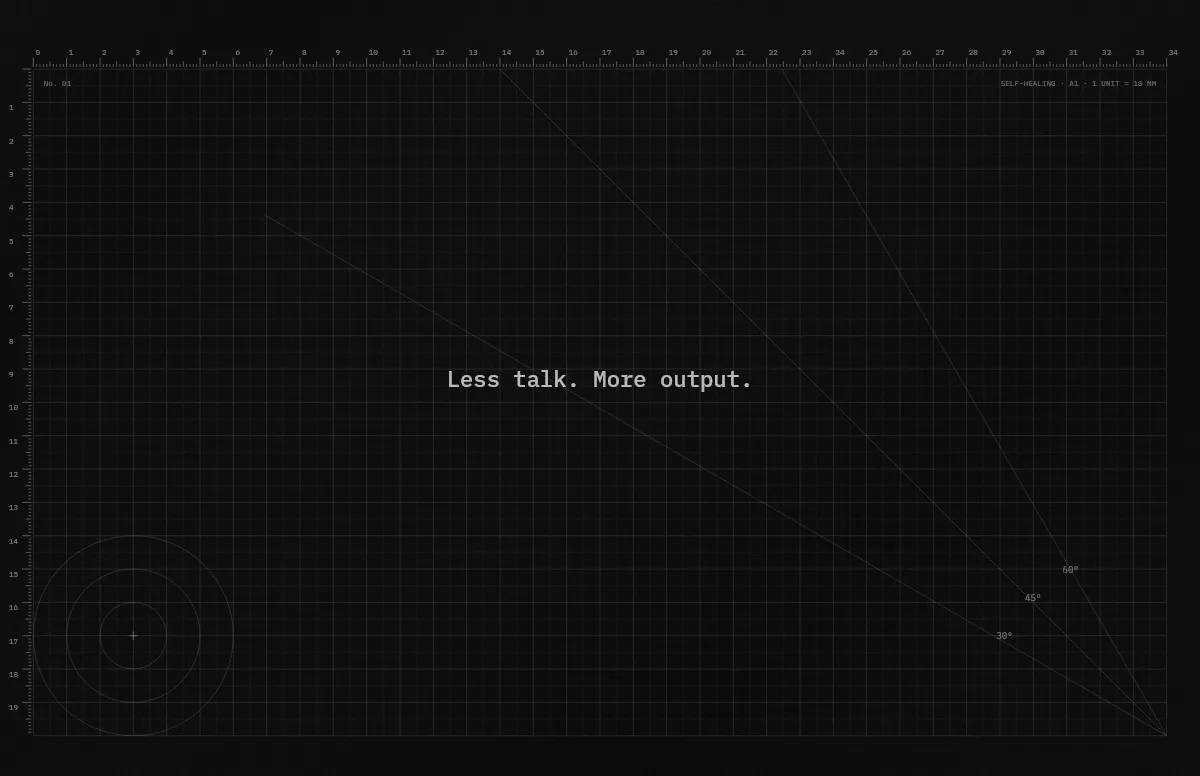
Blueprint is made for this: it prints each screen's resolution in the corner, so you can see at a glance which file belongs on which display. Horizon suits wide screens, with a sunrise sky by day and moon and stars at night, and Cutting Mat shows straight away if an image is being scaled.
Sources
- Apple: Change Wallpaper settings on Mac (Mac User Guide)
- Apple: Studio Display (2026) – Technical Specifications
- Apple: Studio Display XDR – Technical Specifications
- MacRumors: Apple Updates Studio Display With Thunderbolt 5 and More
- AppleInsider: Ultrawide displays gain explicit support in macOS 27
- MacMost: Using Multiple Displays With Your Mac