What you need
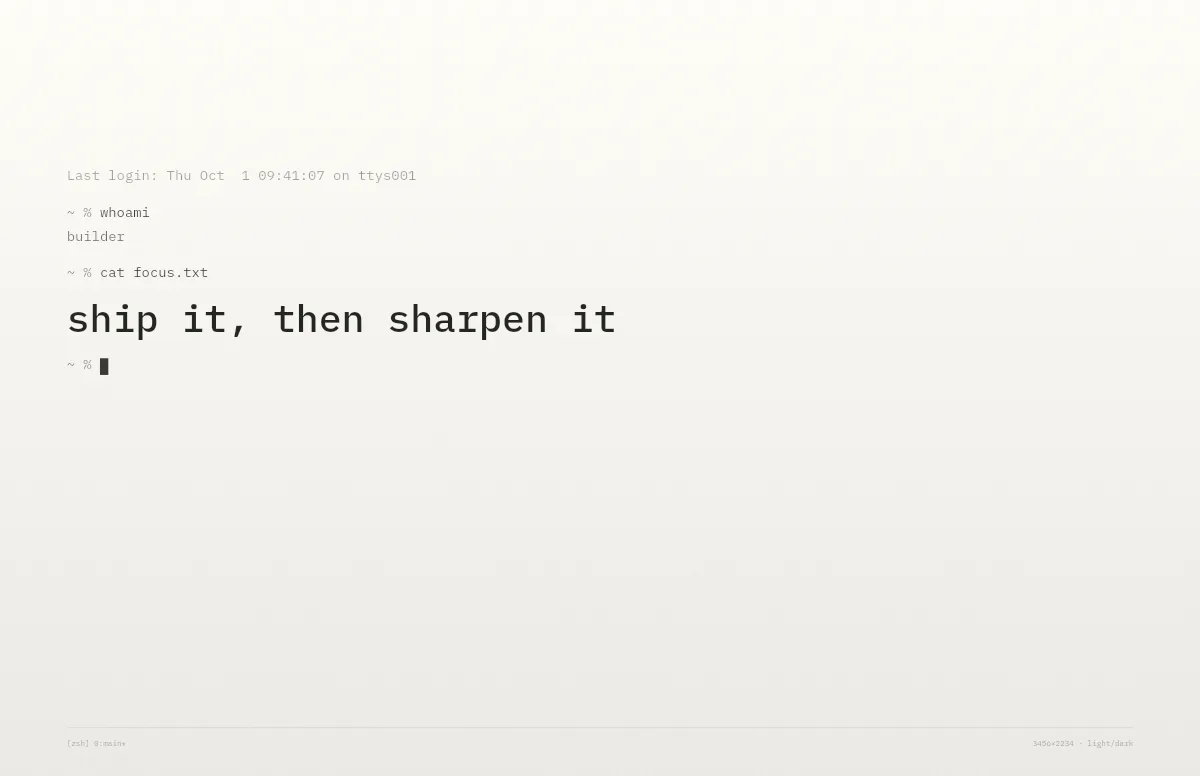
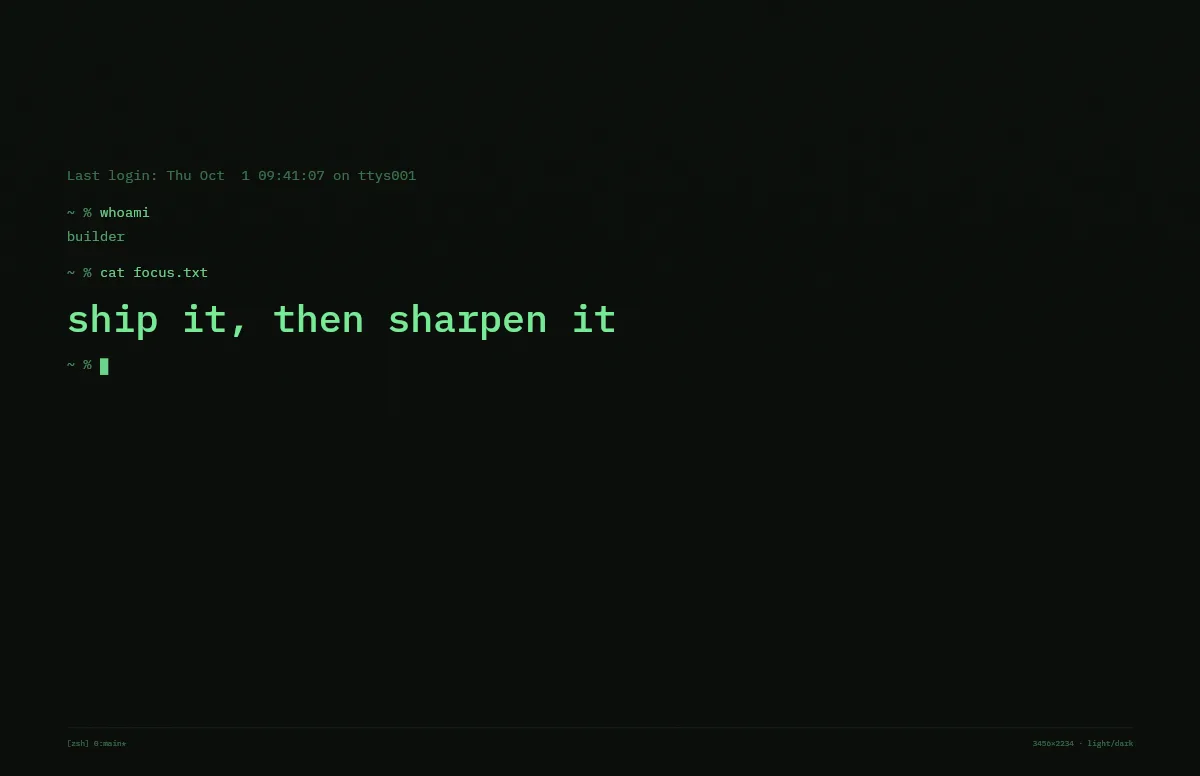
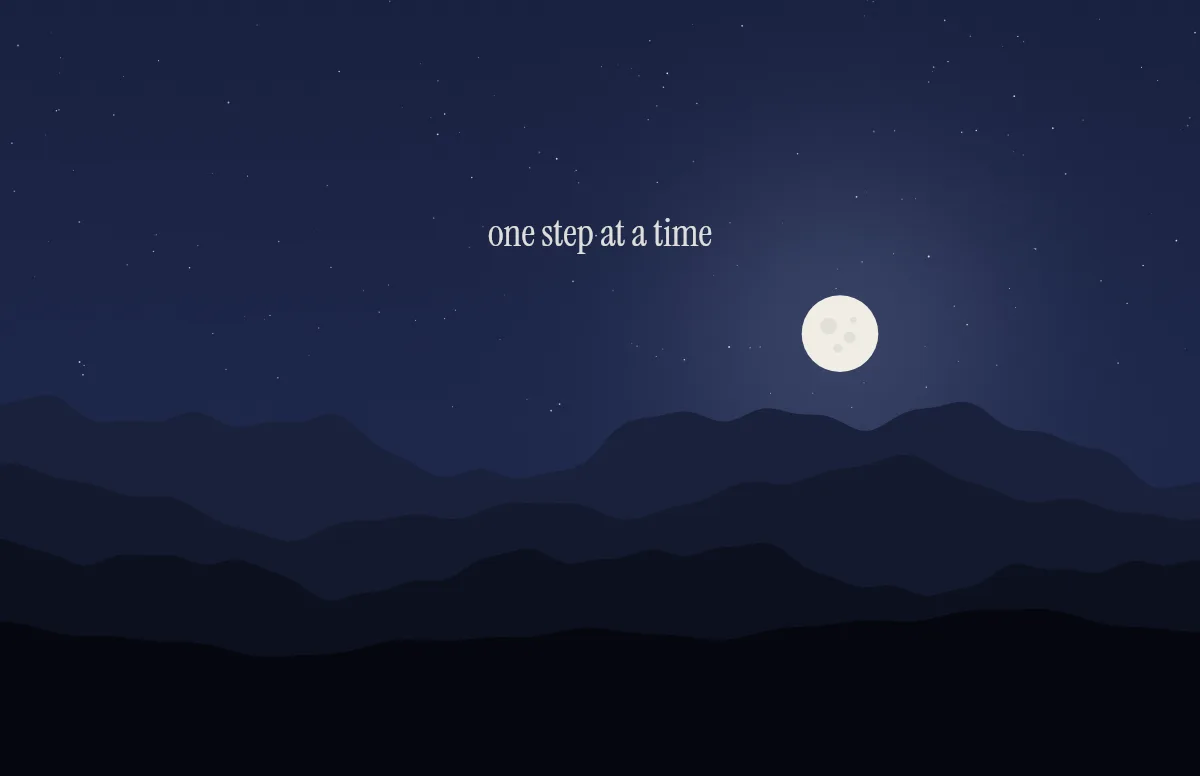
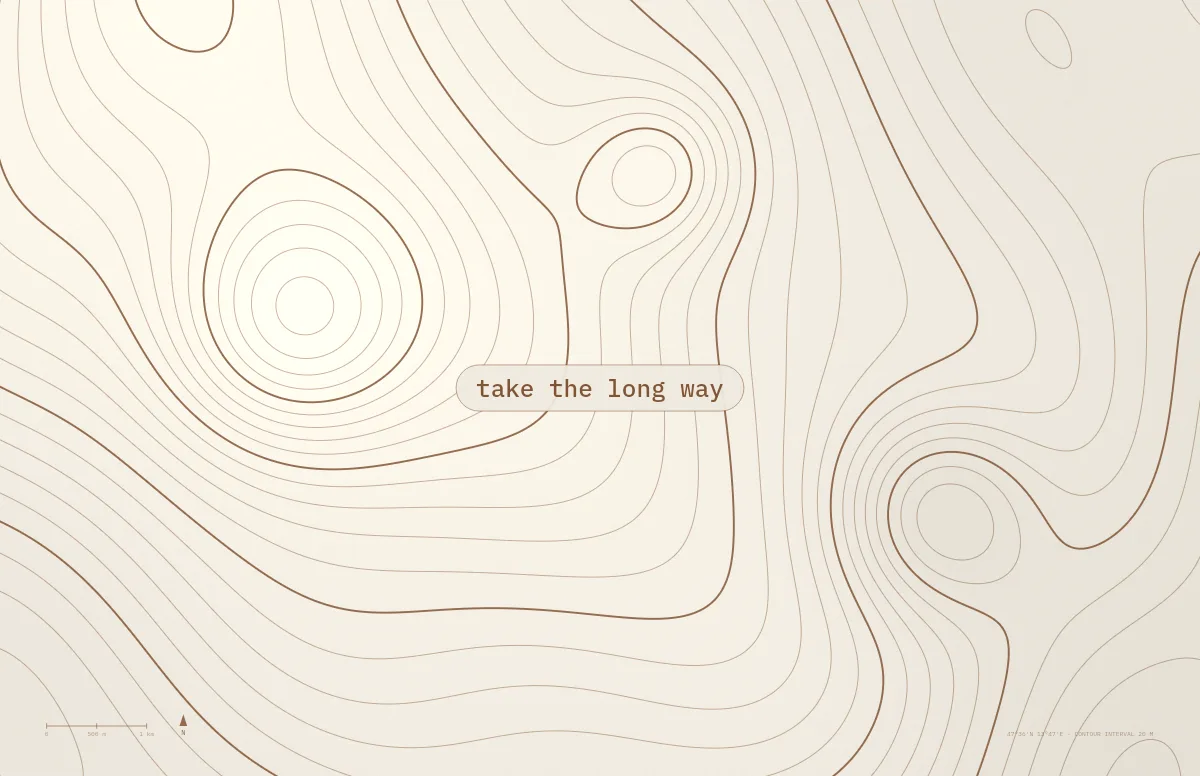
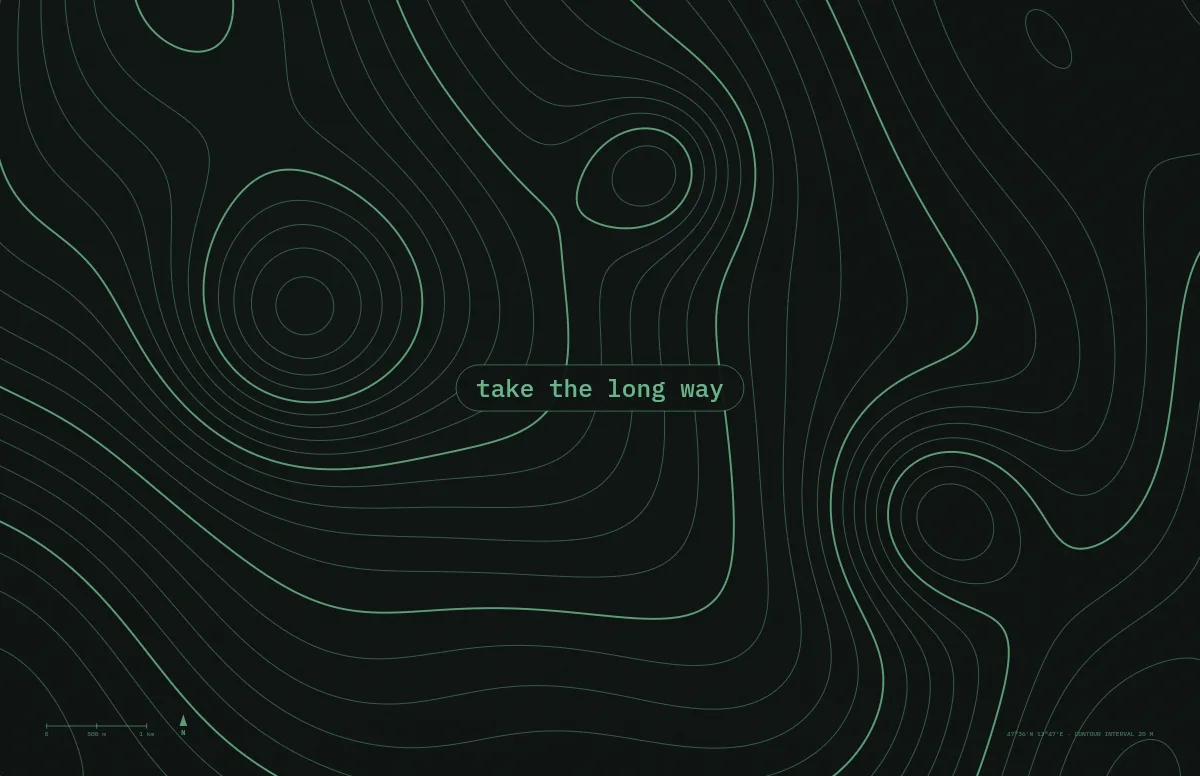
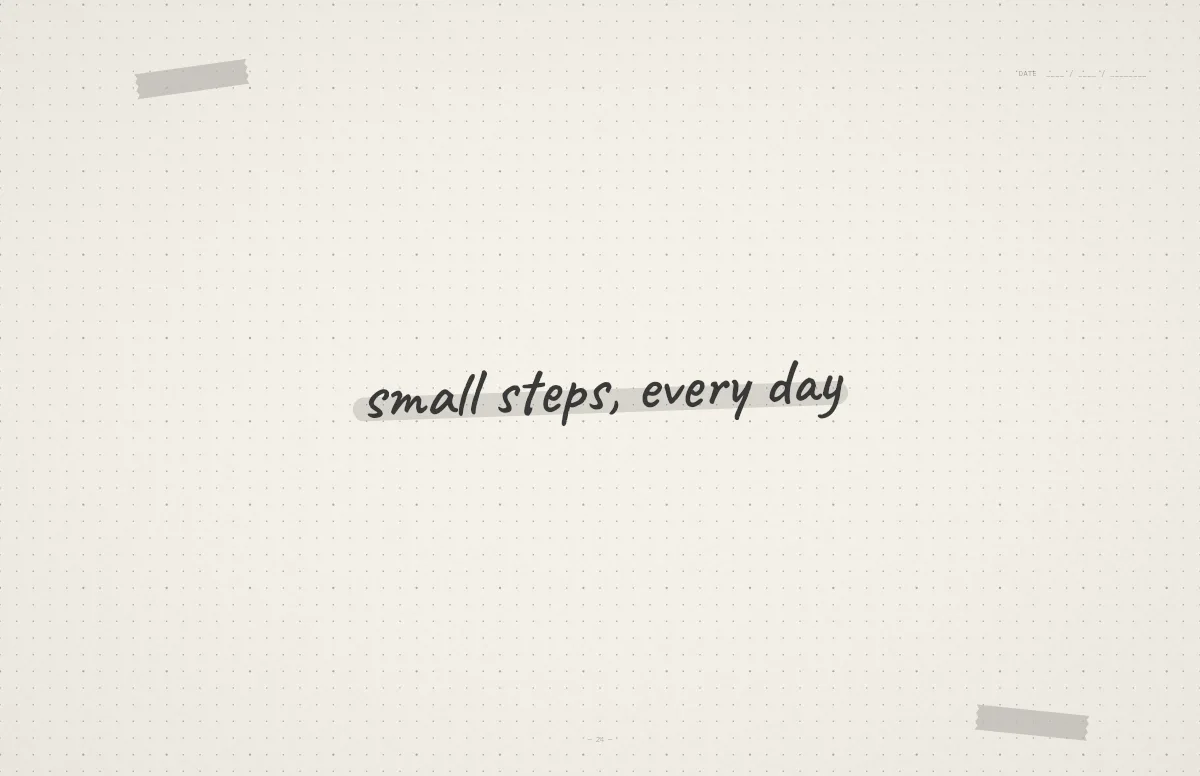
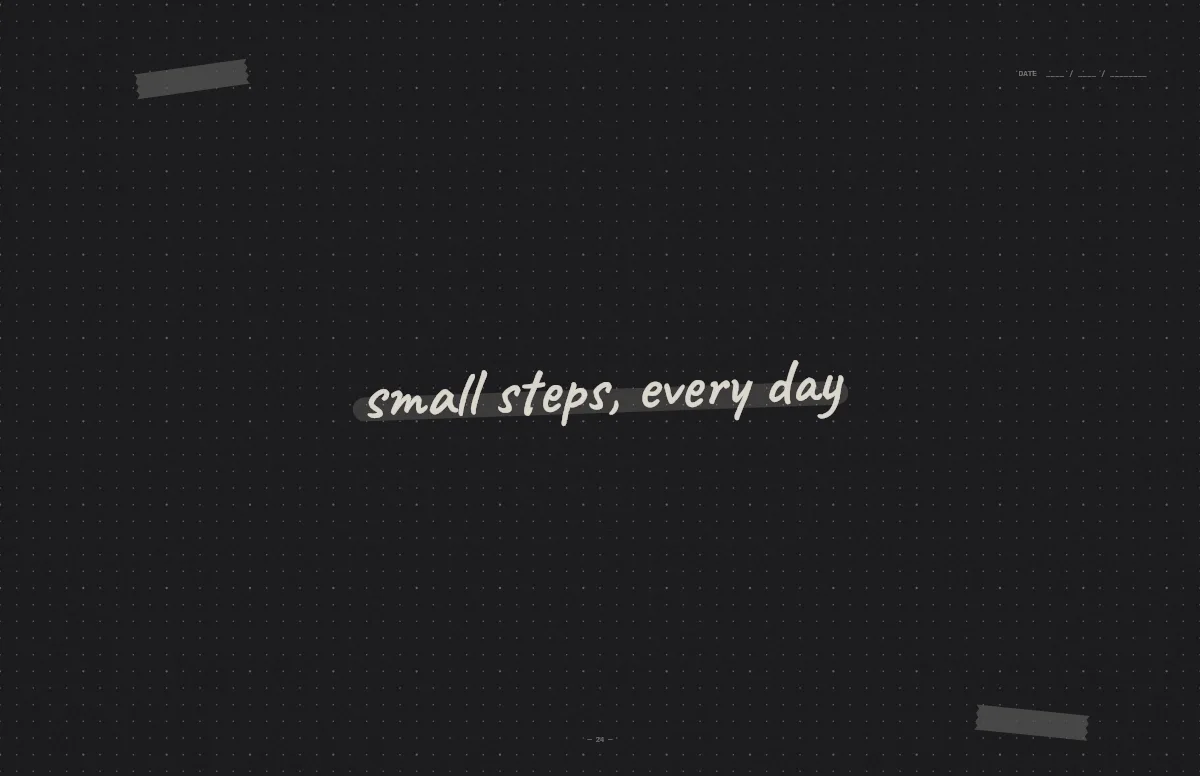
One .heic file that contains both images and tags each one as light or dark. Two separate PNGs are not enough, because macOS has no setting to link a second picture to dark mode. You can make a free file like that in the Notchwerk generator.
Set it up step by step
- Download your .heic file and move it somewhere permanent, for example a Wallpapers folder in Pictures. If you delete or move the file later, macOS loses the wallpaper.
- Right-click the file in Finder and choose Set Desktop Picture. On some macOS versions the command sits under Quick Actions or Services.
- Open System Settings → Wallpaper. Your image now appears as the current wallpaper. Next to it, choose the automatic option so it follows your appearance setting.
- Test it: switch between light and dark in System Settings → Appearance. The wallpaper should change right away.
Why it stays the same in both modes
- If the wallpaper does not change, the file usually lacks the appearance tags. That happens with plain JPG or PNG files, and with HEIC files that only contain one image.
- Converting or editing the file can also strip the tags. Some apps save a new HEIC without the metadata, so set the original download directly.
- If you use several displays, set the wallpaper for each display separately in System Settings → Wallpaper.
Can the iPhone do this too?
Not with your own images. iOS only switches Apple's built-in wallpapers between light and dark. For your own photos the closest workaround is a Shortcuts automation that changes the wallpaper at set times. iPhone guide