How it works
- Pick a template and your deviceEight templates, from Cutting Mat to Notebook, sized for MacBook, iMac, Studio Display and every current iPhone.
- Make it yoursWrite a line of up to 40 characters and set the colors for light and dark mode separately.
- Download and set itOn a Mac, get one .heic that follows your appearance setting. On an iPhone, save a light and a dark PNG.
Templates
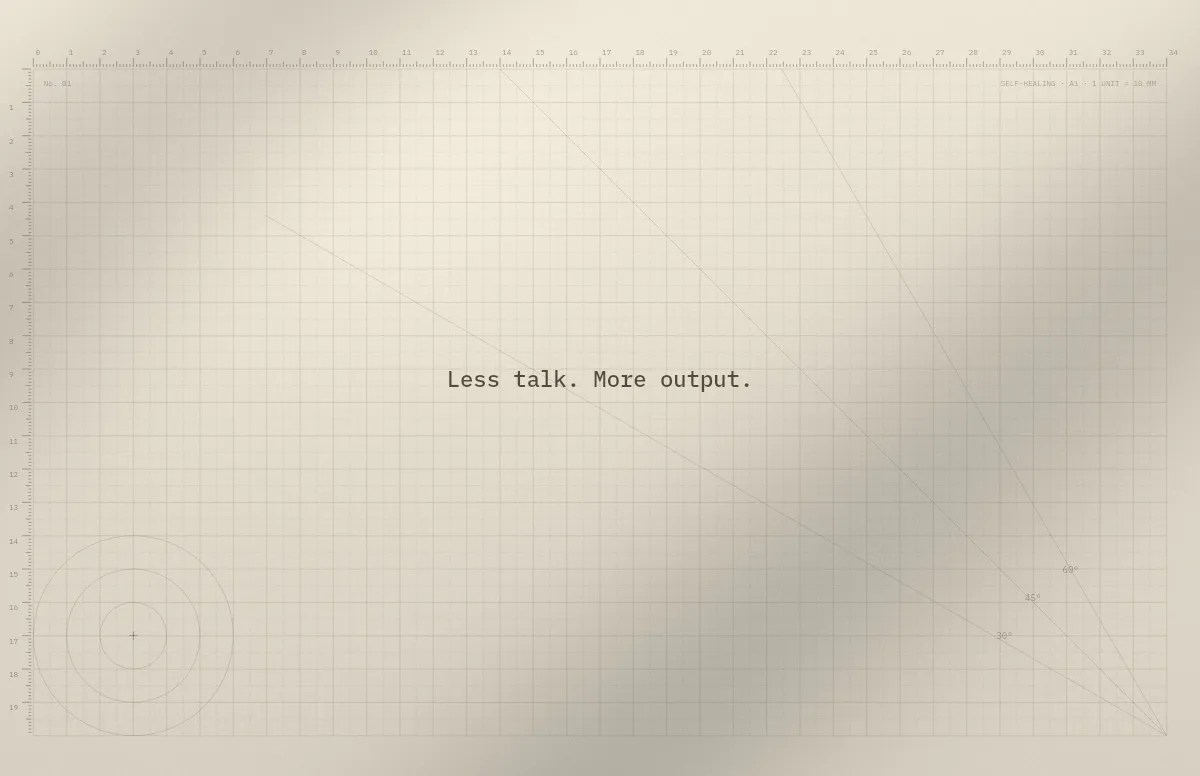
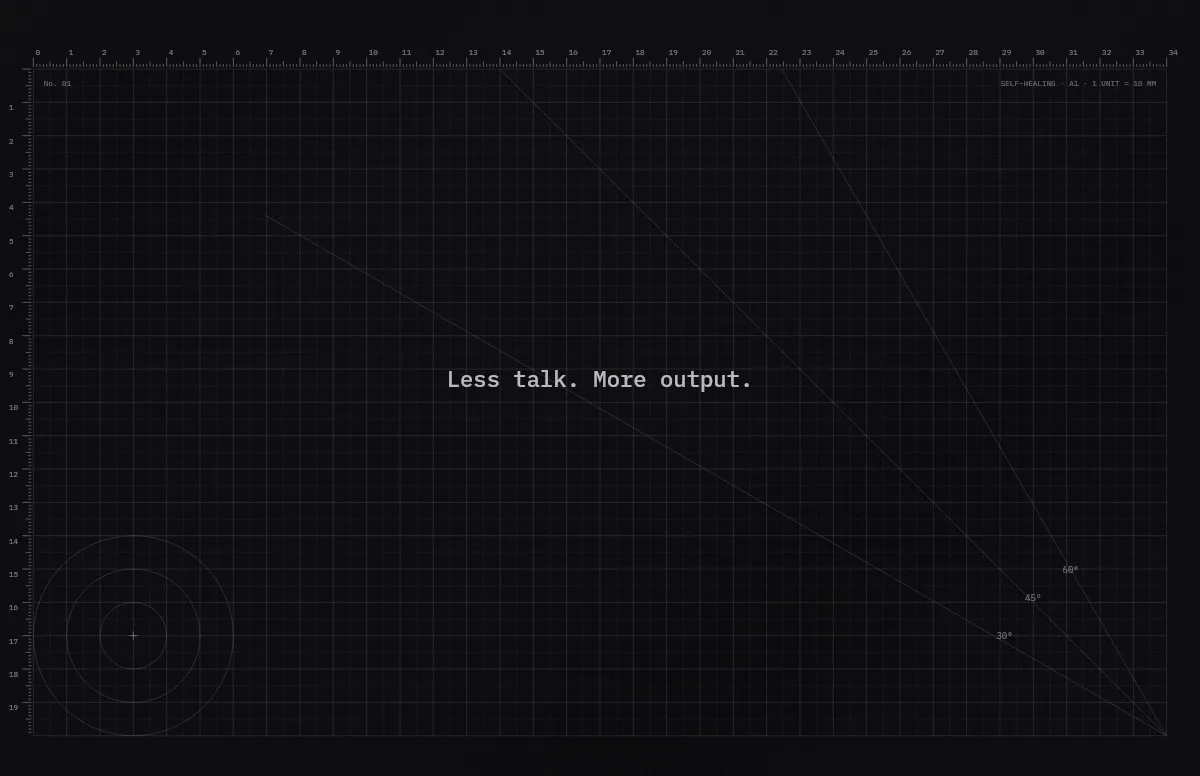
Cutting Mat
Grid, rulers and angle guides, like the mat on a designer's desk.
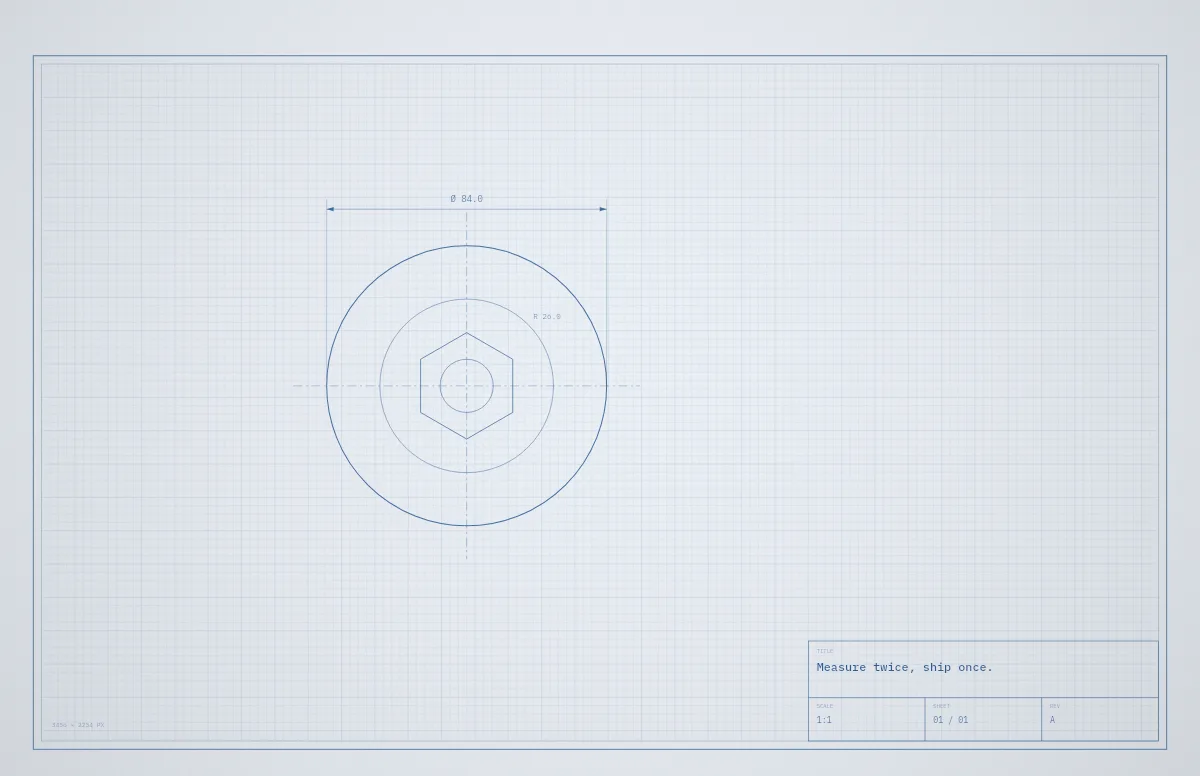
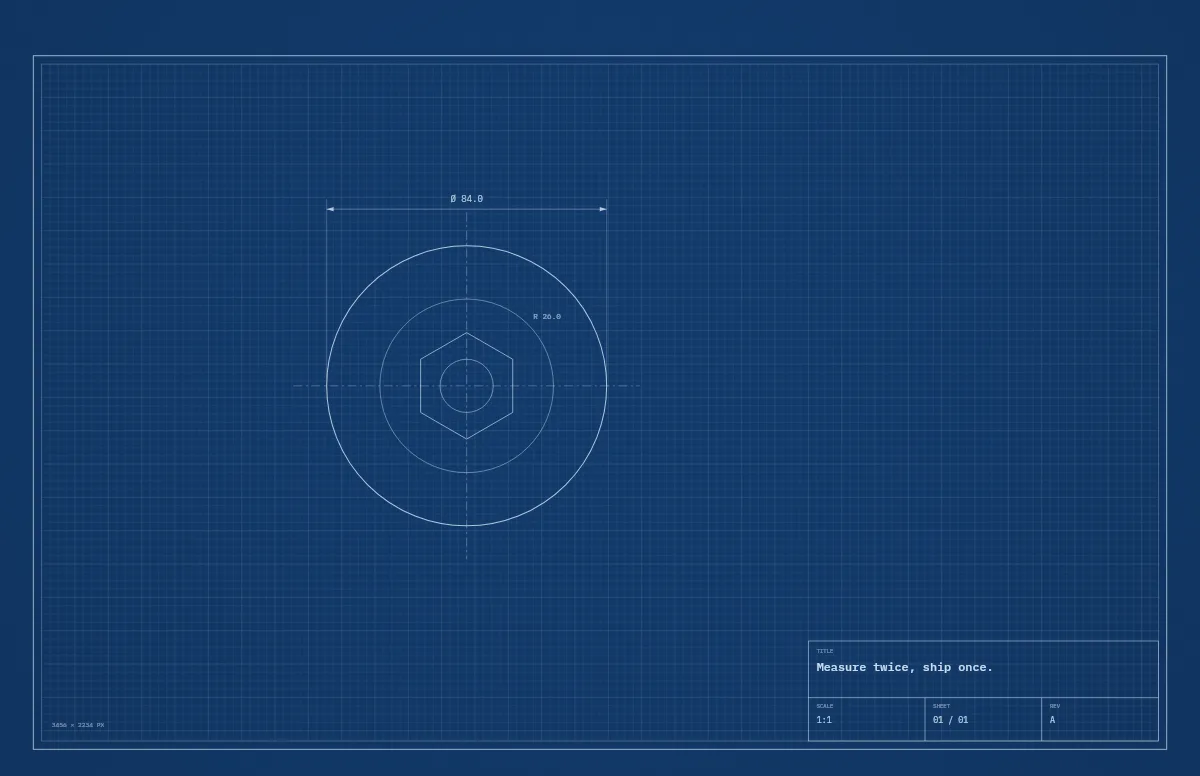
Blueprint
A technical drawing with a title block that carries your text.
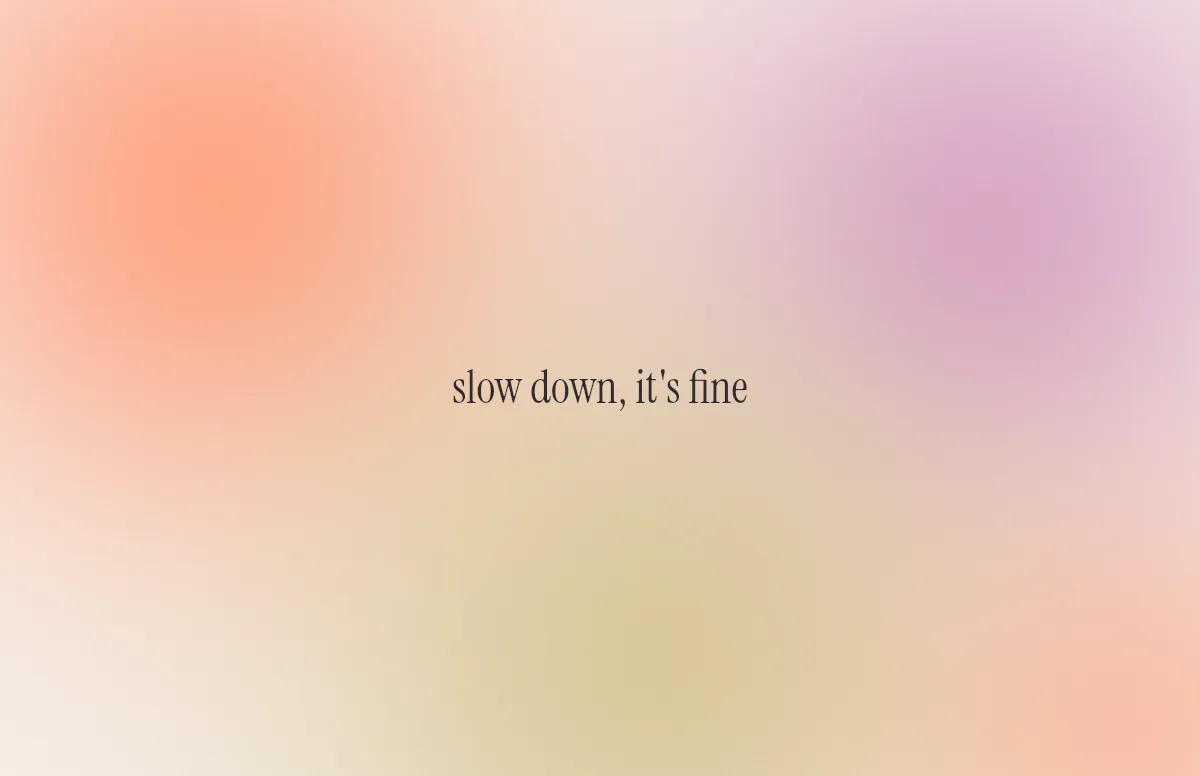
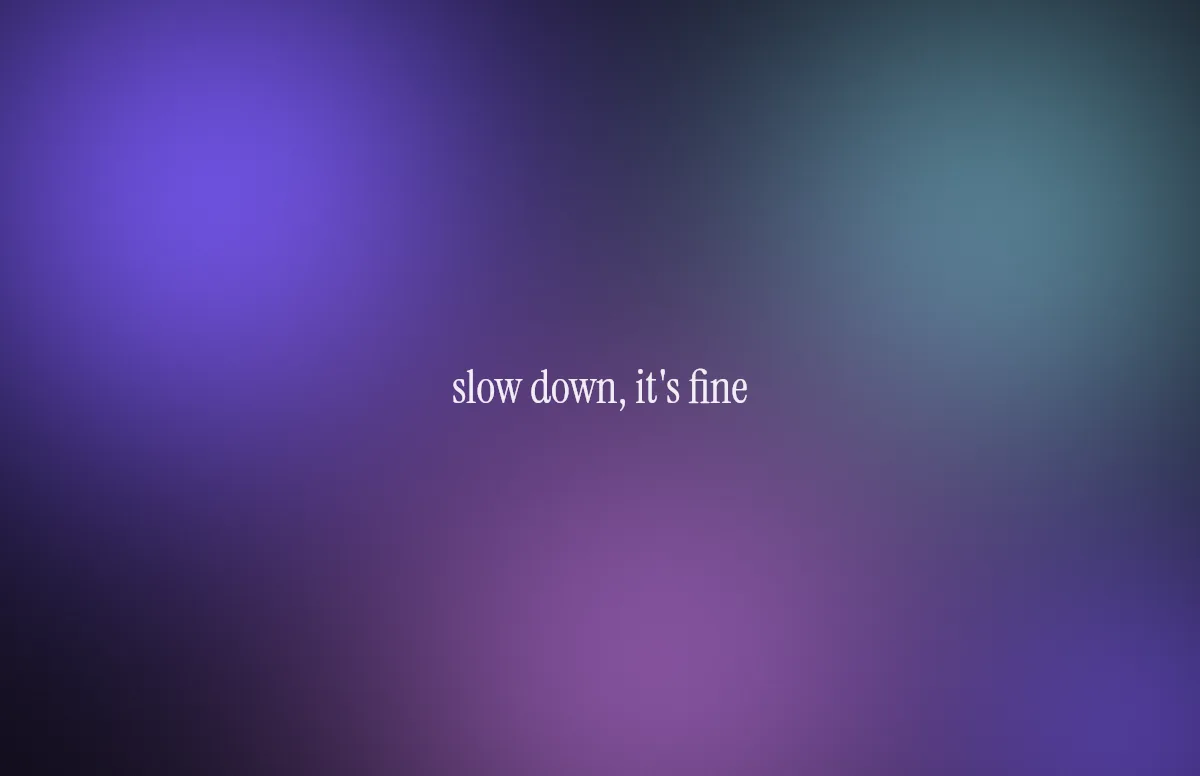
Aura
Soft color glows with a quote in a calm serif.
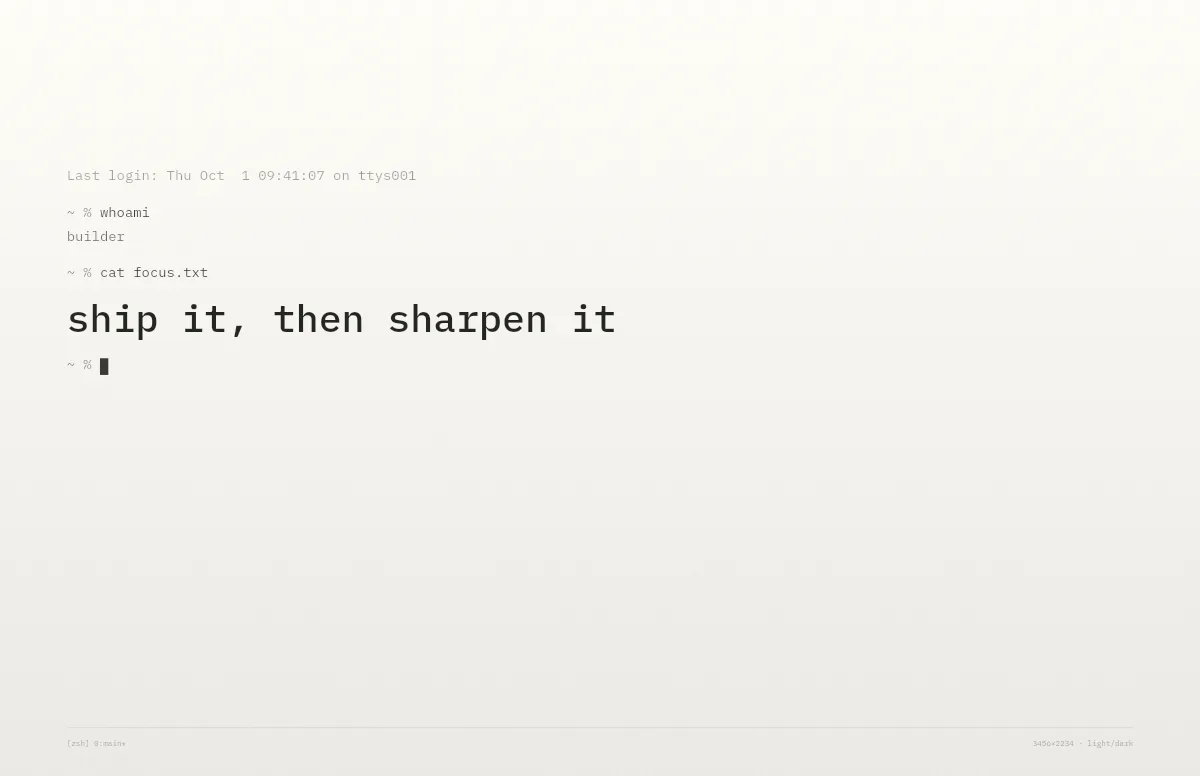
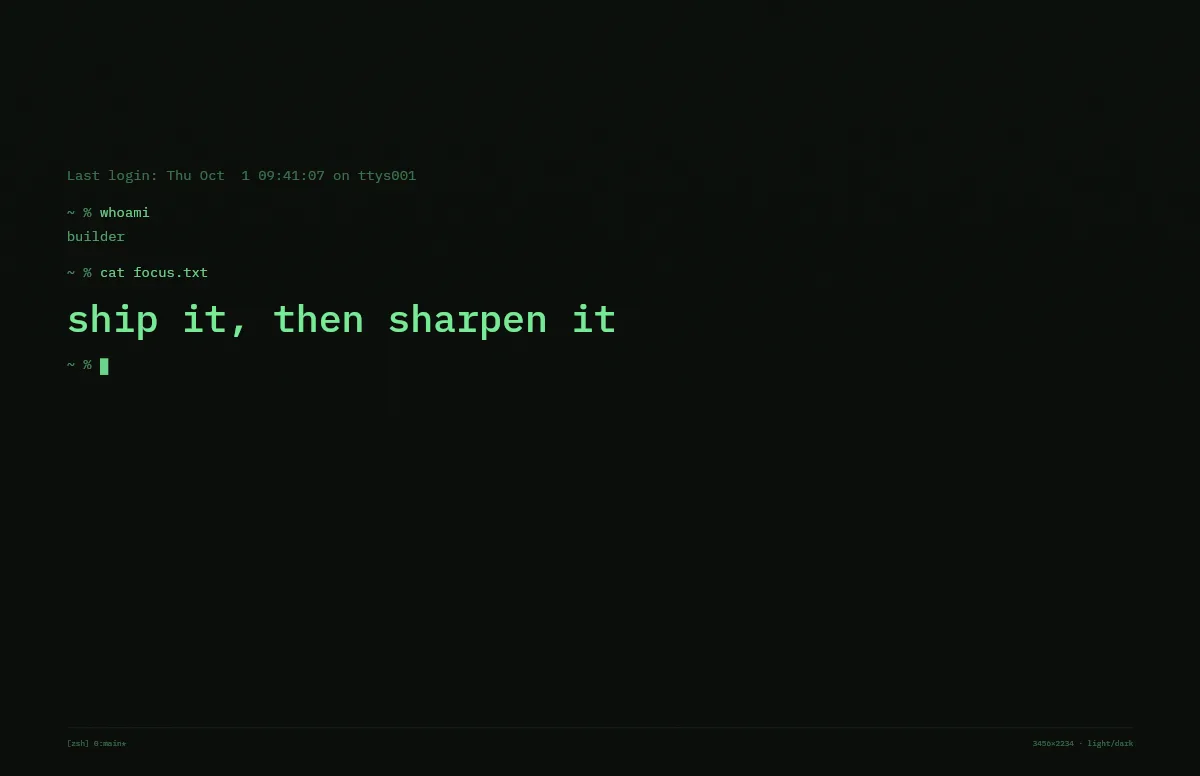
Terminal
A shell session that prints your line. Made for developers.
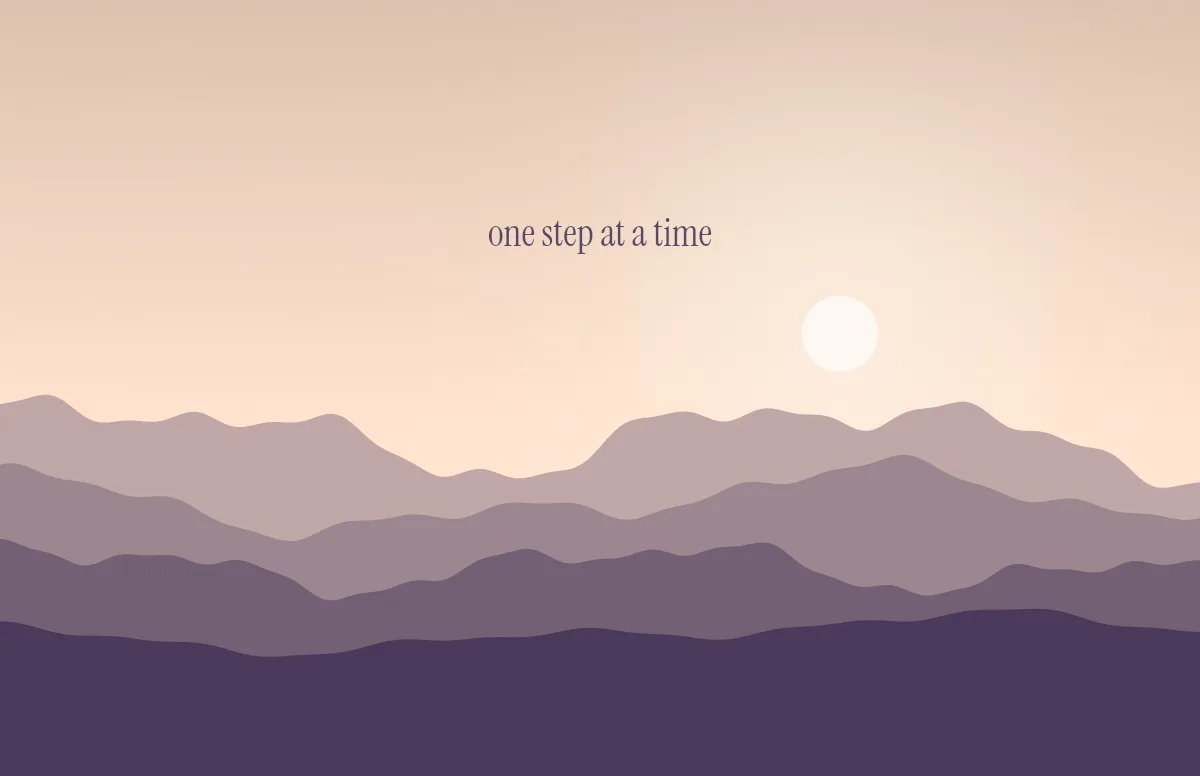
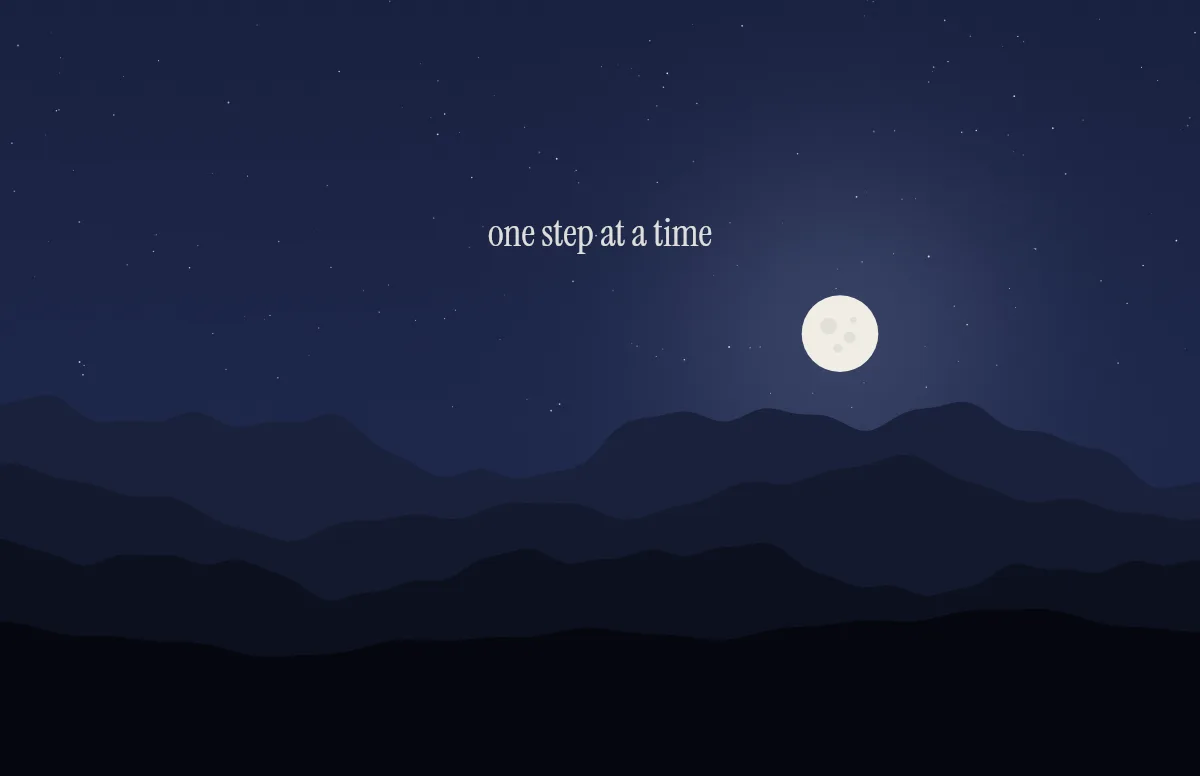
Horizon
Layered mountains under the sun by day and the moon by night.
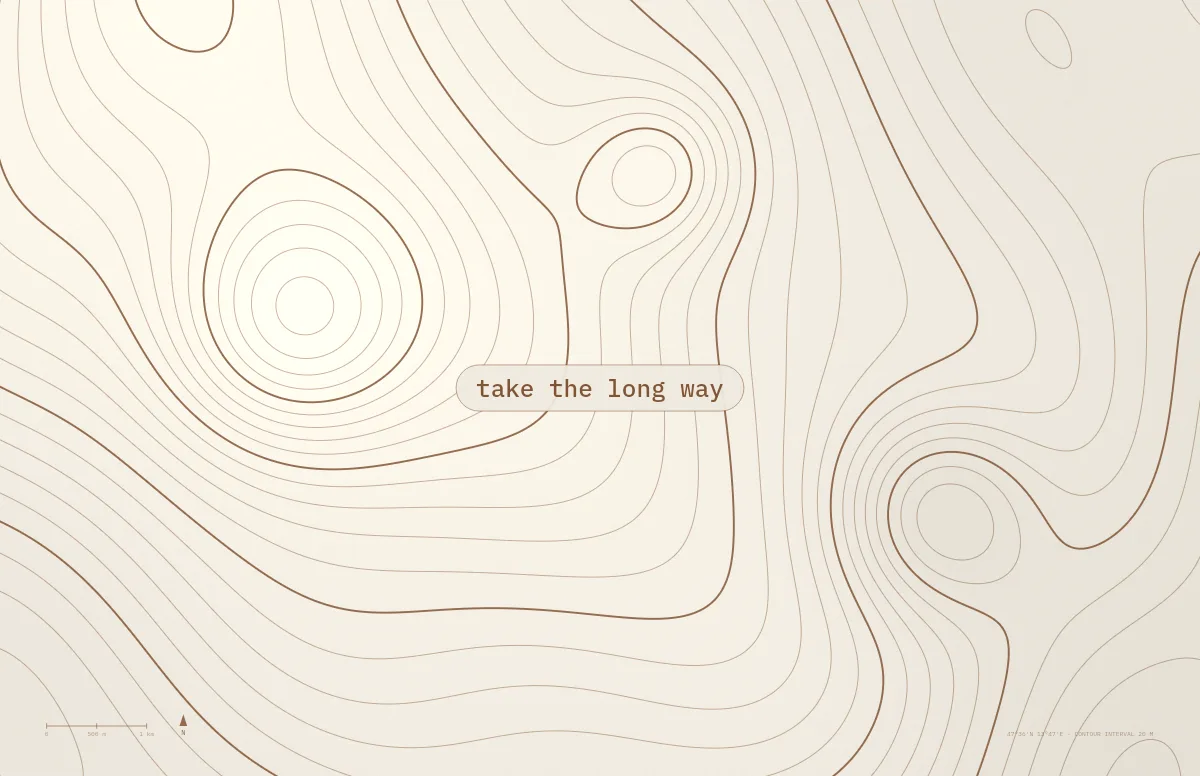
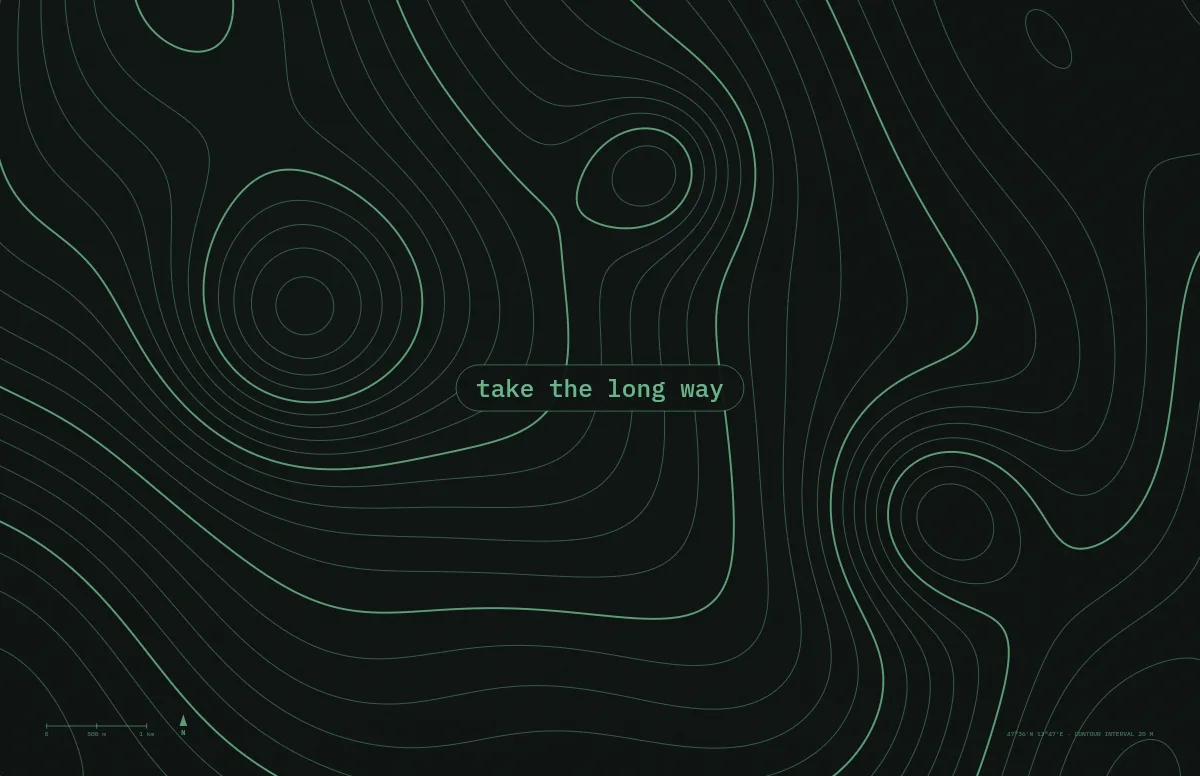
Topo
Contour lines of an imaginary mountain range, with your text as a map label.
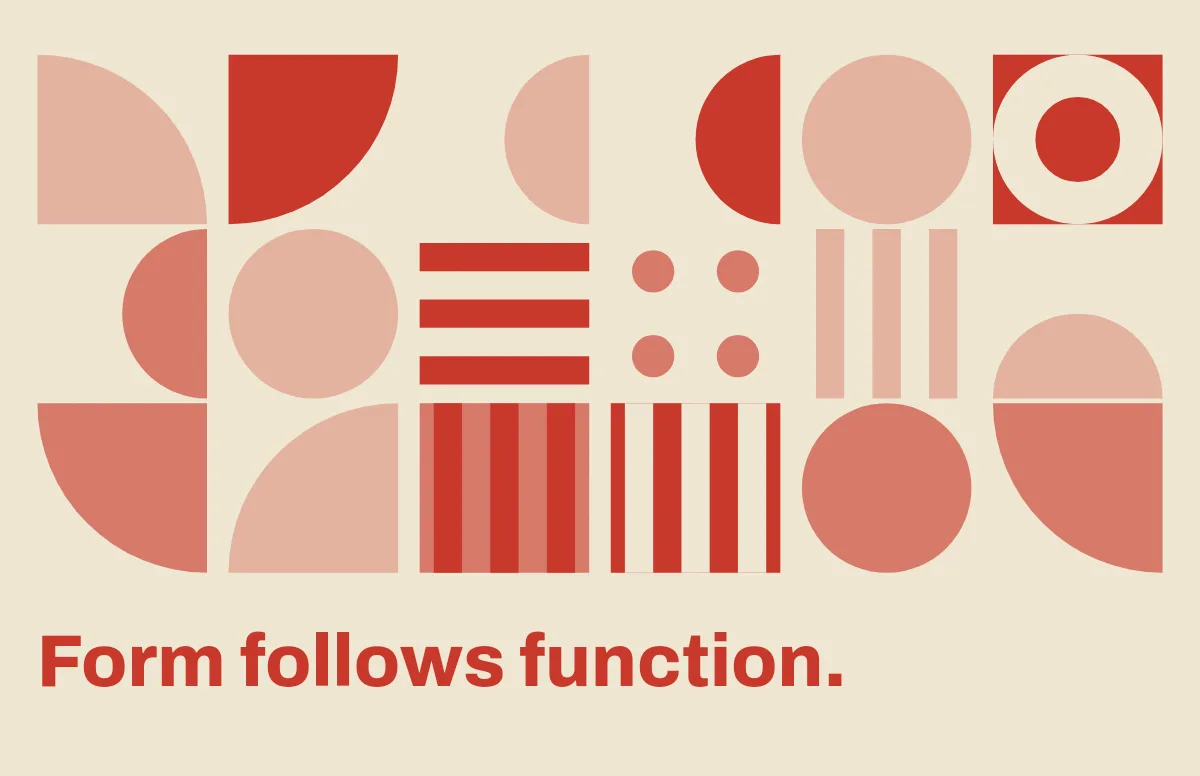
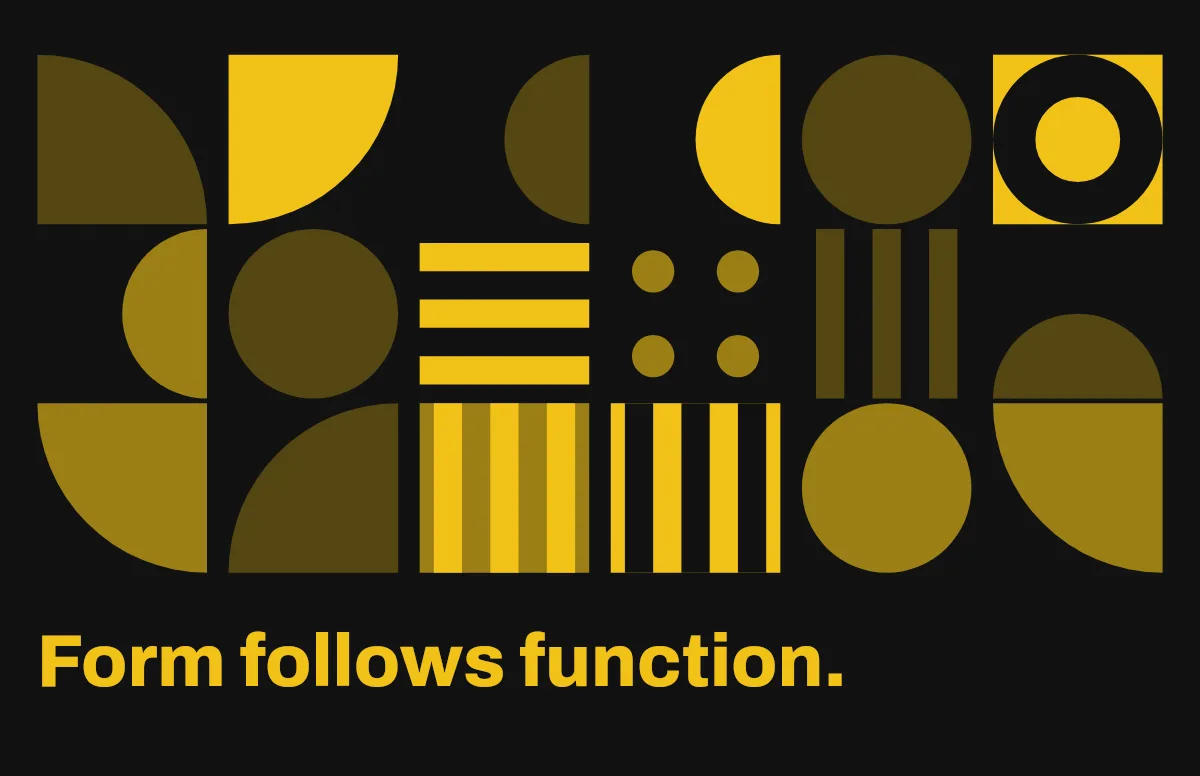
Bauhaus
Circles, quarter circles and stripes on a strict grid, with bold type.
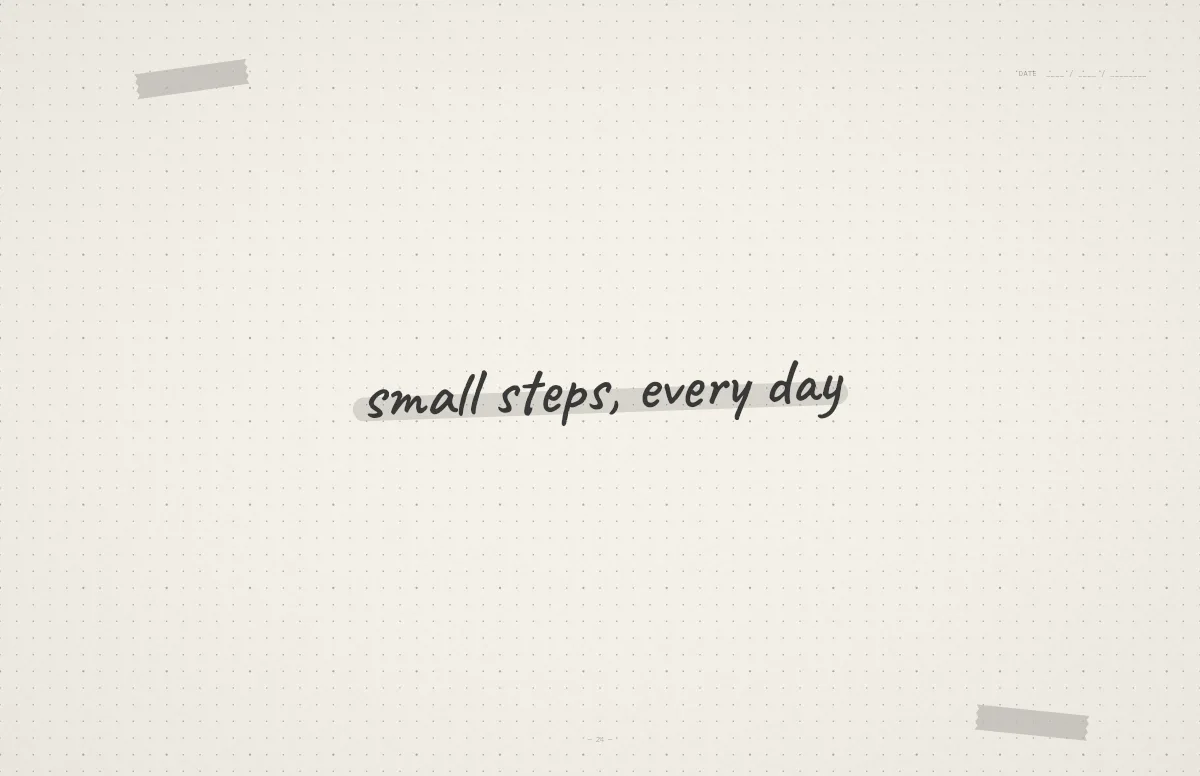
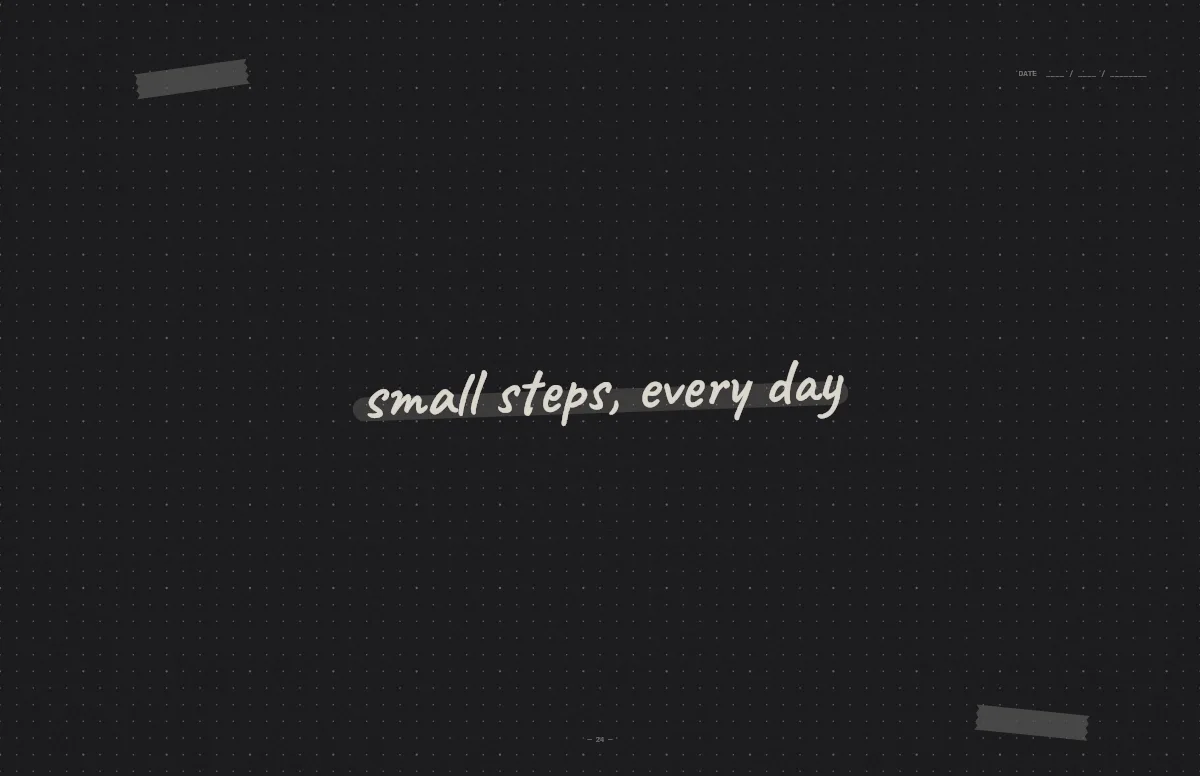
Notebook
A dotted journal page with your line in handwriting and a highlighter stroke.
Why a light and dark wallpaper is better than a single image
macOS can store several images in one HEIC file, each tagged with the appearance it belongs to. Apple's own wallpapers use this, which is why they turn darker when you switch to dark mode. A regular JPG or PNG cannot do that, so most downloaded wallpapers stay bright at night.
Notchwerk writes the same tags into your file. When your Mac changes from light to dark, by hand or automatically at sunset, the wallpaper changes with it.
Notch-safe by design
Every MacBook since late 2021 has a notch and a taller menu bar. Many wallpapers made for older screens put text or detail right where the notch sits. Each template here knows the menu bar height of the model you pick and keeps rulers, frames and text below it.
MacBook wallpaper sizes
These are the native resolutions Notchwerk renders for. Using the exact size keeps lines sharp, because macOS does not have to scale the image. The iPhone page lists the iPhone sizes.
| Model | Resolution | Notch |
|---|---|---|
| MacBook Air 13″ (M2, M3, M4) | 2560 × 1664 | yes |
| MacBook Air 15″ | 2880 × 1864 | yes |
| MacBook Pro 14″ (2021 and later) | 3024 × 1964 | yes |
| MacBook Pro 16″ (2021 and later) | 3456 × 2234 | yes |
| MacBook Air 13″ (M1) / MacBook Pro 13″ | 2560 × 1600 | no |
| iMac 24″ | 4480 × 2520 | no |
| Studio Display 27″ | 5120 × 2880 | no |
Questions and answers
Are the wallpapers really free?
Yes. You can make and download as many as you like for personal use. The site is paid for by the ads you see on it.
How do I set a wallpaper that changes with dark mode?
Download the .heic file, right-click it in Finder and choose Set Desktop Picture. Then pick the automatic option in System Settings → Wallpaper. The step-by-step guide covers the details.
What resolution do I need for my MacBook?
Pick your model in the generator and the wallpaper is rendered at its native resolution, for example 3456 × 2234 pixels for the MacBook Pro 16″. The table above lists every size.
Does it work on the iPhone?
Yes. Pick your iPhone model and save a light and a dark PNG. iOS cannot switch your own wallpapers by itself, but a Shortcuts automation can do it at sunrise and sunset. The iPhone guide shows how.
Does it work on Windows?
The PNG downloads work on any screen. The automatic switch of the .heic file is a macOS feature.
Can I use the wallpapers commercially?
The wallpapers are for your own devices. Please do not resell them or offer them for download elsewhere.
Is Notchwerk made by Apple?
No. Notchwerk is an independent tool and is not affiliated with Apple.
From the blog
MacBook wallpaper size: the right resolution for every model
The native wallpaper resolution for every current MacBook Air, MacBook Pro, iMac and Studio Display, and why the notch changes what fits at the top.
iPhone wallpaper size: the resolution for every current model
The exact wallpaper resolution for every iPhone from SE to 18 Pro Max, how to find your model, and where to keep text clear of the lock-screen clock.
Mac wallpaper not changing with dark mode? Five reasons and fixes
Your Mac switches to dark mode but the wallpaper stays bright. Here are the five most common causes, from the wrong file type to a missing setting.