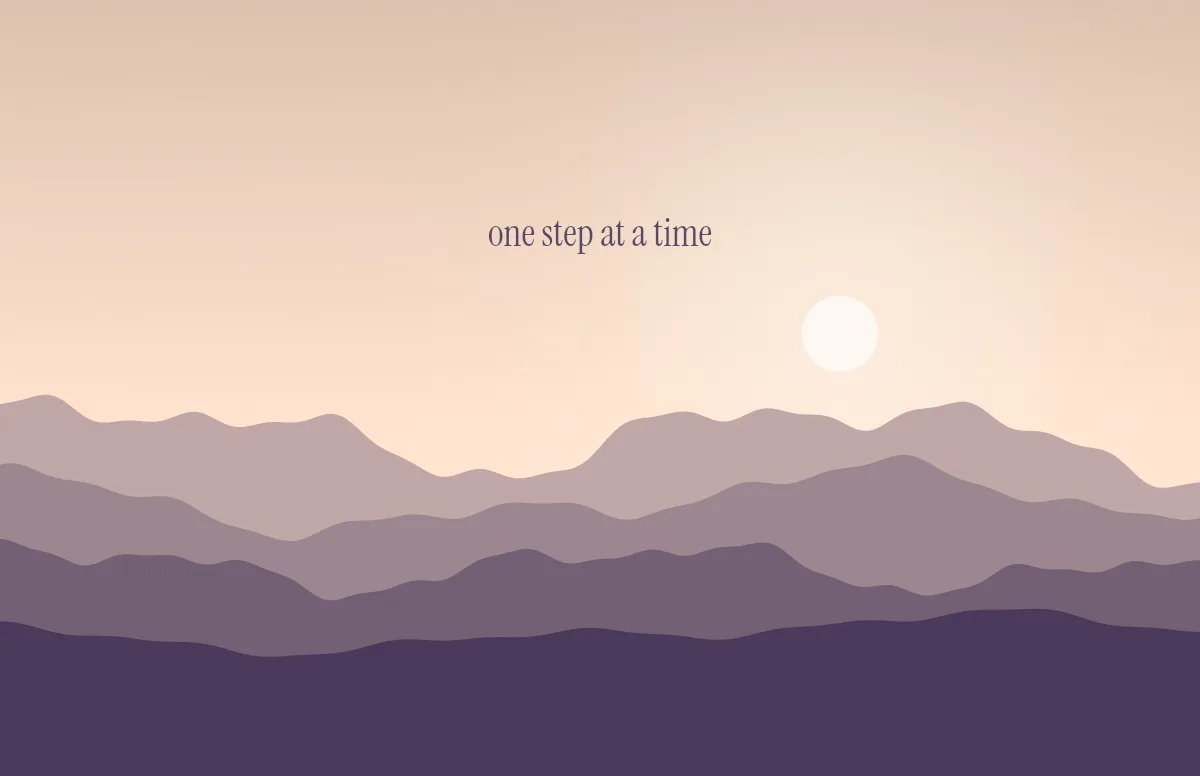
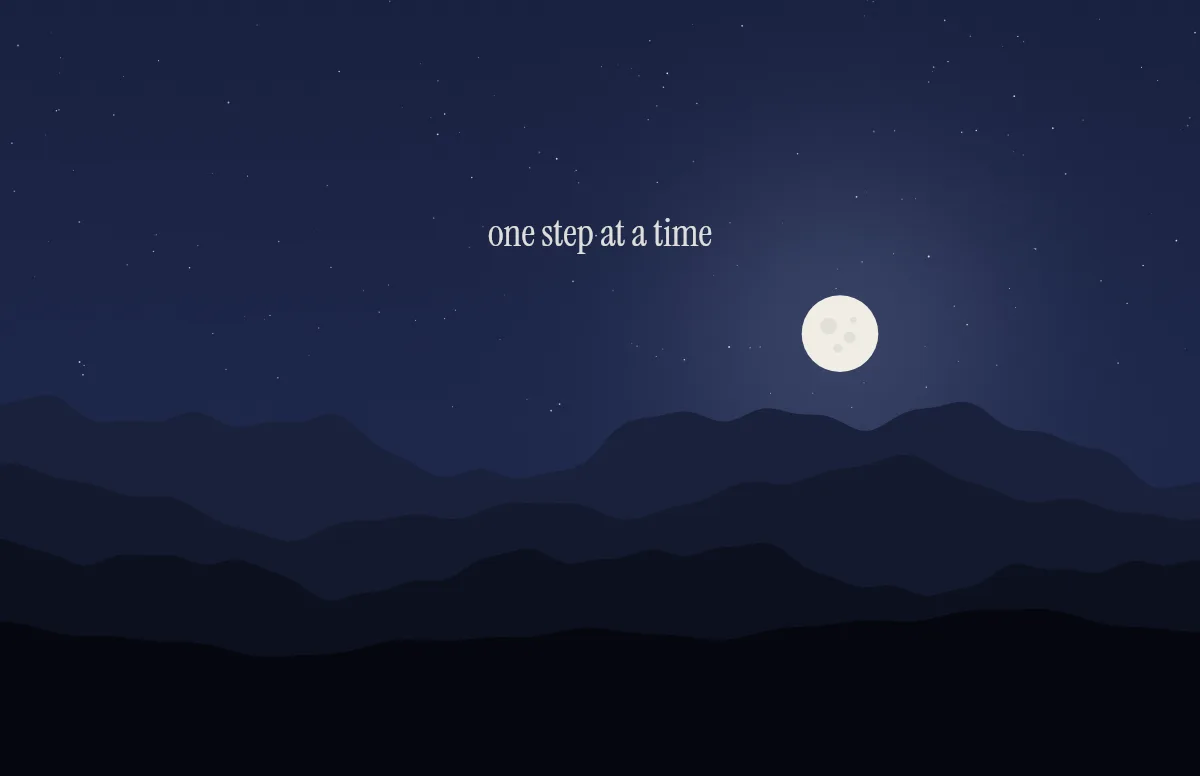
Apple's own wallpapers turn darker as soon as your Mac switches to dark mode. With a wallpaper you downloaded, that often does not happen. These are the usual reasons, roughly in order of how often they come up.
1. The file only contains one image
A normal JPG or PNG has exactly one picture, so there is nothing for macOS to switch to. A wallpaper that changes with dark mode is a special HEIC file with two images inside, each tagged as light or dark.
Fix: use a light/dark HEIC file. You can recognize one in System Settings: when you select it, macOS offers an automatic option next to the preview. The article How to make a light and dark wallpaper for Mac explains how these files work.
2. The automatic option is not selected
Even with the right file, macOS may be set to always show the light or always the dark image.
Fix: open System Settings → Wallpaper, select your wallpaper and choose the automatic option in the menu next to it.
3. Your Mac never actually switches
The wallpaper follows the appearance of your Mac. If the appearance is set to Light or Dark permanently, the wallpaper never has a reason to change.
Fix: under System Settings → Appearance, choose Auto. Your Mac then switches to dark in the evening, and the wallpaper follows. You can also switch by hand to test it.
4. The file was moved or deleted
macOS remembers where the wallpaper file is. If you set it straight from the Downloads folder and later clean that folder up, the wallpaper can fall back to a still image or to the default.
Fix: keep your wallpapers in a fixed place, for example a Wallpapers folder inside Pictures, and set them from there.
5. The file was converted or edited
Many apps save a new HEIC without the extra tags, even if they keep both images. Preview, image editors and some upload services can do this.
Fix: set the original download directly. If you want to change the design, change it in the tool you made it with and export again.
Still not working?
If you use several displays or Spaces, set the wallpaper for each of them in System Settings → Wallpaper. Recent macOS versions also have a switch to show the same wallpaper on all Spaces.
The full setup is in our step-by-step guide. If you need a wallpaper that switches correctly, the generator creates one for free, with your own text and colors.