Every iPhone Apple sells today has an OLED screen, and since this autumn the MacBook Pro with PROLED XDR Display brings OLED to the Mac as well. That puts an old question back on the table: should your wallpaper be black? You will find two strong claims online, that a black background saves a lot of battery and that a static wallpaper burns into the screen. Both are partly true. Here is what the research and Apple's own documents say, and how to make a dark wallpaper that actually suits an OLED panel.
The short answer
- Battery: A dark wallpaper saves energy on OLED, but mostly at high brightness. At normal indoor brightness the difference is small, and the wallpaper is only visible for a fraction of the day.
- Burn-in: Apple says it can happen in extreme cases, when the same high-contrast image stays on screen continuously. A wallpaper you see for a few seconds at a time is not that case.
- Looks: This is the real reason to go dark on OLED. Black pixels stay dark, so a dark design looks deeper than on an LCD or mini-LED screen.
Why black is different on OLED
On an LCD, a backlight shines through every pixel, even the black ones. On OLED, each pixel produces its own light. A black pixel is simply not lit, and a near-black pixel is lit only very slightly. That is why OLED screens reach such high contrast: Apple lists the PROLED XDR Display at 10,000,000:1 and describes "deep blacks" without blooming or halos.
It also explains the battery question. An OLED panel uses more power for bright pixels than for dark ones, so a screen full of dark content needs less energy than the same screen full of white.
Does a black wallpaper save battery?
The most cited measurement comes from Purdue University. In 2021, researchers Pranab Dash and Y. Charlie Hu measured how much dark mode saves on OLED phones. Their result:
| Screen brightness | Average saving with dark mode |
|---|---|
| 30–50 % (typical indoors with auto-brightness) | 3–9 % |
| 100 % | 39–47 % |
Two things are worth knowing about these numbers. First, they come from Google Pixel and Motorola phones running Google apps, not from iPhones, so treat them as an order of magnitude, not as an iPhone spec. Second, they are for dark mode across whole apps. Your wallpaper is only visible on the Lock Screen and the Home Screen, and on the Home Screen icons and widgets cover a good part of it. A black wallpaper alone saves a fraction of what dark mode does.
So yes, a dark wallpaper helps a little, and it helps most when you use your phone outside in bright sunlight. If battery life is your main goal, dark mode for the whole system and auto-brightness matter far more than the picture behind your apps.
The Always-On display
There is one case where the wallpaper is on screen for hours: the Always-On display on iPhones that support it. iOS dims the Lock Screen and can lower the refresh rate to as little as 1 Hz there, but the wallpaper stays visible by default. If you want a fully black screen while the phone rests on the table, open Settings → Display & Brightness → Always On Display and turn off Show Wallpaper. Only the time, date and widgets remain.
Can a wallpaper burn into the screen?
Apple separates two effects in its support document on iPhone displays. Image persistence is a faint remnant of a previous image. Apple says it is temporary and disappears after a few minutes of normal use. Burn-in is permanent, and according to Apple it can occur "in more extreme cases such as when the same high-contrast image is continuously displayed".
A Lock Screen or Home Screen wallpaper does not fit that description well. You see it in short bursts, the screen turns off after a while, and apps cover it most of the time. Apple's recommendations to reduce the risk are simple:
- keep iOS up to date,
- leave auto-brightness on,
- set a short Auto-Lock time (Settings → Display & Brightness → Auto-Lock),
- avoid showing static images at maximum brightness for long periods.
And on the PROLED MacBook Pro?
A Mac desktop is different, because the wallpaper can stay visible for hours behind a half-empty screen. Apple has not published burn-in guidance for the PROLED MacBook Pro yet. What it does say is that the display engine of M5 Pro and M5 Max compensates every pixel for content, pixel use, temperature and environment, and "monitors and adapts each pixel's usage over time". That is a mitigation, not a promise, so the same sensible habits apply as on the iPhone: let the display turn off when you are away (System Settings → Lock Screen) and avoid hard, bright edges that sit in exactly the same spot all day. More on the new screen in New MacBook Pro 2026: wallpaper size and Dynamic Island.
How to make a good OLED wallpaper
A black screen is efficient, but a pure black rectangle is also a little dull. These rules give you the depth of OLED without making the wallpaper look empty.
- Use near-black, not grey. Backgrounds like #0c0a14 or #07120f keep pixels almost off and still carry a hint of color. Dark grey (#333 and up) loses most of the OLED effect.
- Let one color glow. Bright accents on a dark field are where OLED shines. Soft gradients that fade into black look smoother than hard shapes.
- Keep large bright areas small. A big white block is the opposite of what OLED is good at, for battery and for contrast.
- Avoid thin, bright lines in fixed places. Fine high-contrast grids are the closest thing a wallpaper gets to a static UI element. Dim them in the dark version.
- Pair it with a light version. A pitch-black picture can feel gloomy at noon. Use a lighter variant by day and the near-black one at night, so the dark design does its job when the screen is the brightest thing in the room.
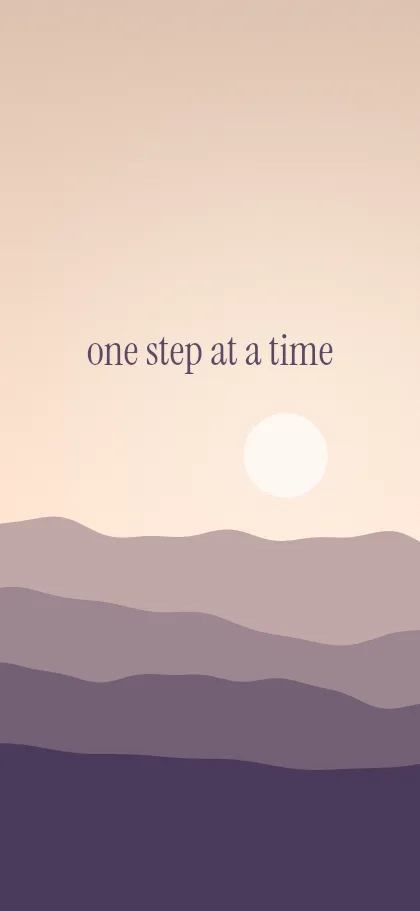
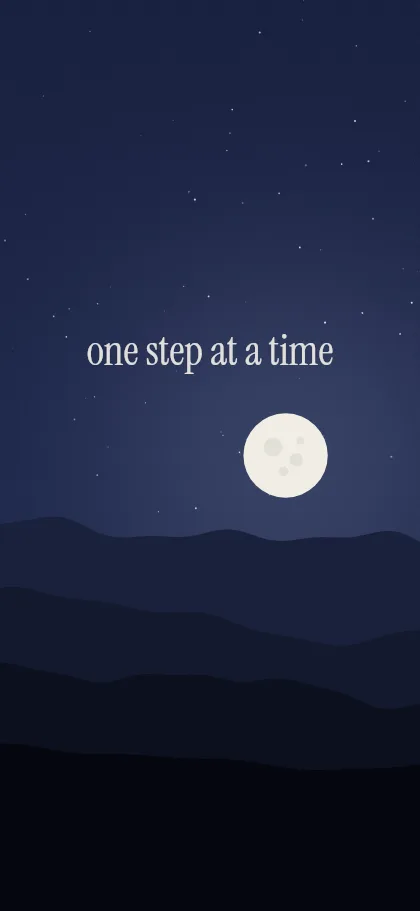
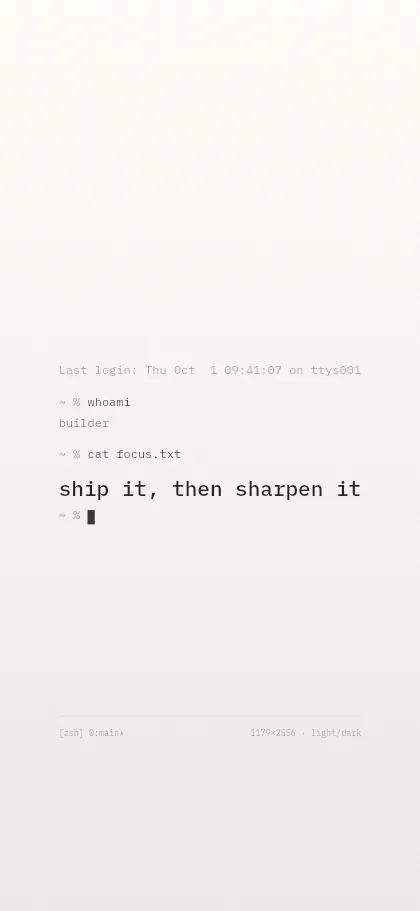
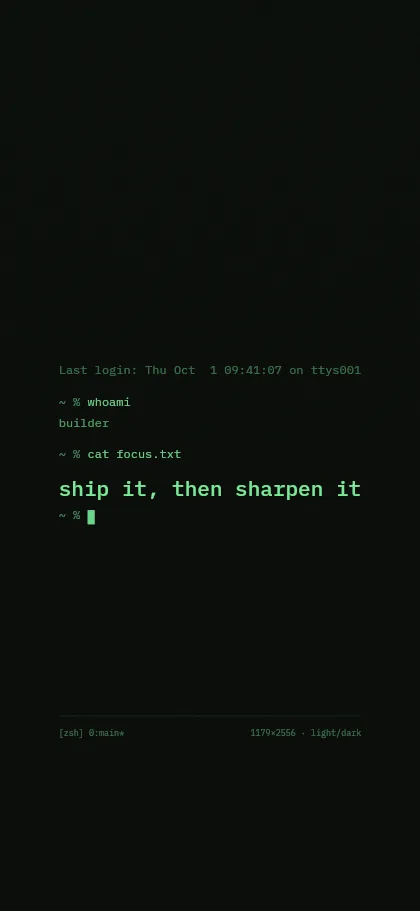
The Aura template is built exactly like that: soft color glows on near-black backgrounds in the dark version. Horizon puts a starry night sky behind your text, and Terminal gives you a phosphor-green prompt on almost black. In every template you can set the dark background yourself, down to pure #000000.
Make one for your iPhone or Mac
The iPhone generator renders the wallpaper at your model's native resolution, for example 1206 × 2622 on the iPhone 18 Pro, and keeps text clear of the clock and the buttons. iOS does not switch wallpapers with dark mode on its own; the iPhone guide shows a Shortcuts automation that does it for you. Tips on placement are in keeping the lock screen clock clear.
For the Mac, the Notchwerk generator supports the MacBook Pro 14″ PROLED and 16″ PROLED and packs light and dark into one .heic file that macOS swaps by itself. Picking two colors that belong together is easier with the tips in choosing colors for light and dark.
Sources
- Apple Support: About the Super Retina display and Super Retina XDR display on your iPhone
- Apple: iPhone, compare models
- Apple: MacBook Pro with PROLED XDR Display, technical specifications
- Apple Newsroom: Apple unveils MacBook Pro with PROLED XDR Display
- Purdue University / EurekAlert: Dark mode may not save your phone's battery life as much as you think
- MacRumors: Apple details the iPhone 14 Pro's Always-On display