The days until your date
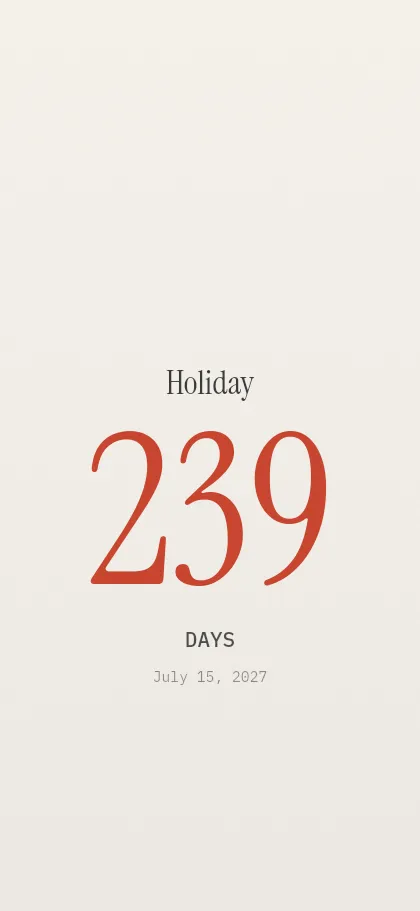
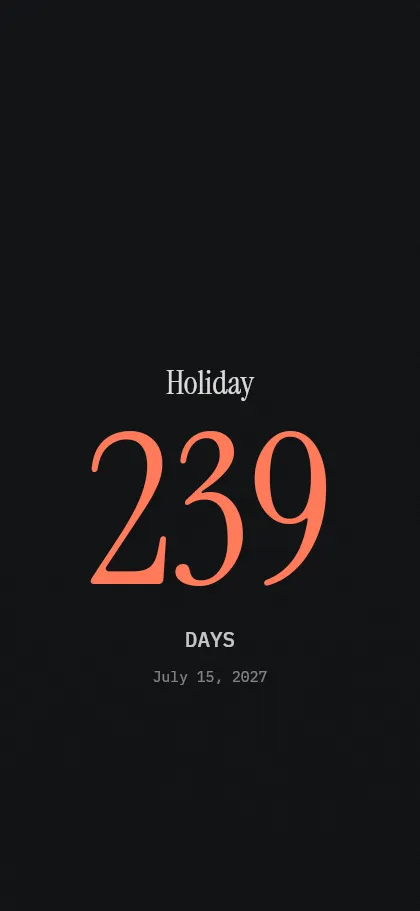
Type what you are counting down to in the text field, for example Holiday, Wedding or Exam, and choose the date under Details. The number is drawn large in your accent color, with the date below it.
On the iPhone the number sits below the lock-screen clock, on a Mac in the middle of the desktop. On the day itself the wallpaper shows 0.
Update it automatically on the iPhone
A wallpaper is a still image, so yesterday's picture stays until something replaces it. A Shortcuts automation does that: it loads today's picture from your personal address and sets it as the wallpaper. You set it up once.
- Pick your iPhone, your colors and light or dark in the generator above. Then tap Copy auto-update link.
- Open the Shortcuts app, switch to Automation and tap + to create a new automation. Choose Time of Day, set a time early in the morning, repeat daily, and let it run immediately.
- Start with a blank automation. Add the action Get Contents of URL and paste the link.
- Add the action Set Wallpaper Photo. Apply it to the lock screen, and turn off Show Preview and Crop to Subject so iOS does not ask every time.
- Save, then test the automation with the play button. The wallpaper should change right away.
The link contains only the size of your screen, your colors, your time zone and your text. Nothing is stored. Action names differ slightly between iOS versions: search the action list for “URL” and “wallpaper”.
Update it automatically on the Mac
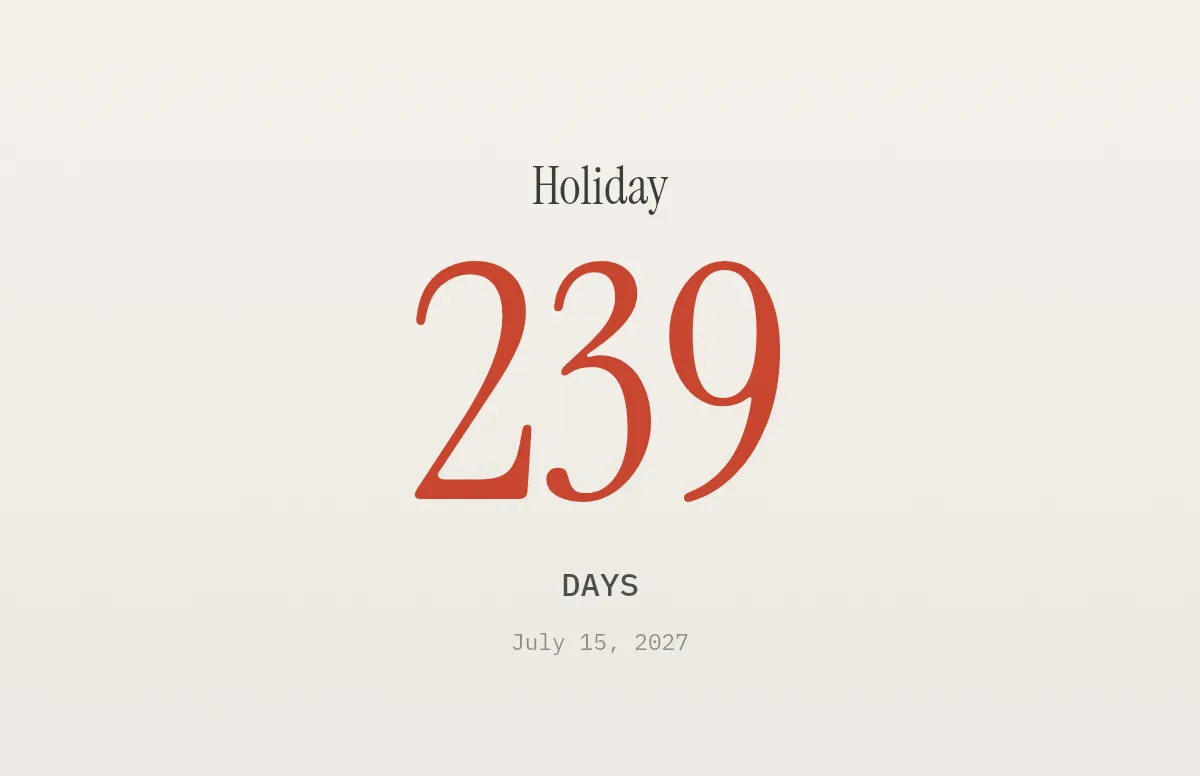
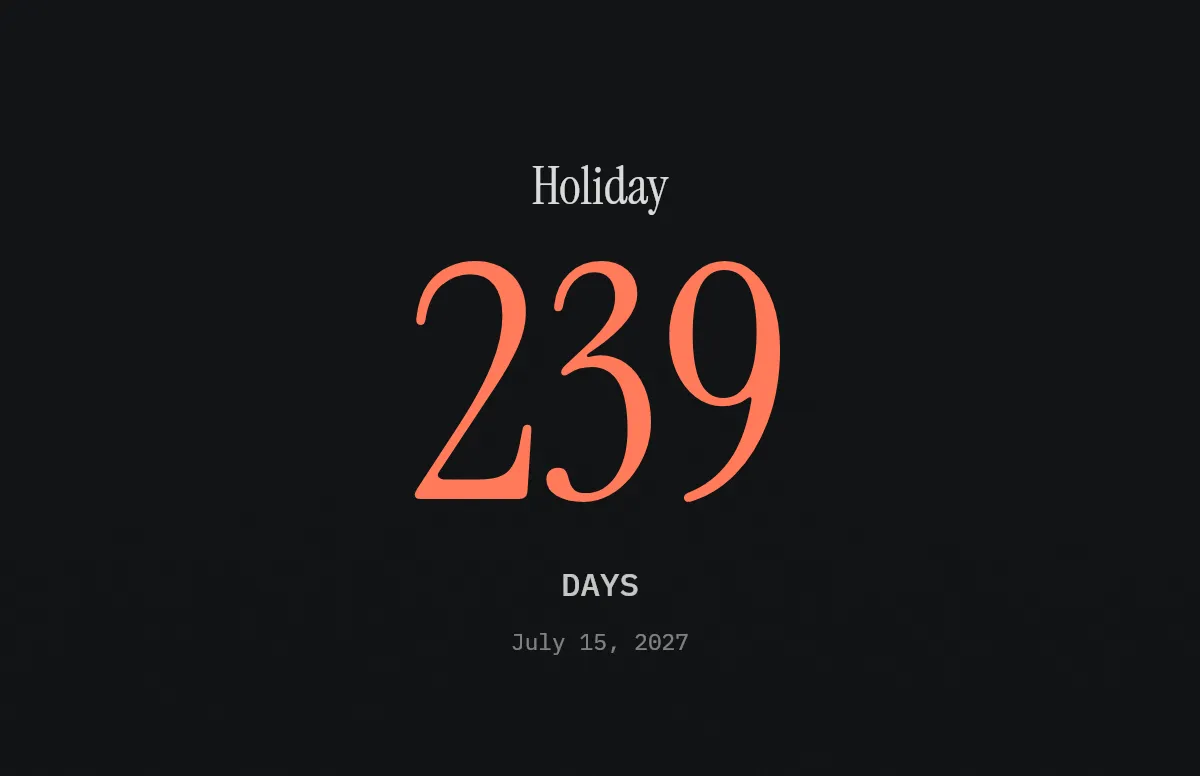
From macOS 26 the Shortcuts app on the Mac runs automations too. The link for a Mac returns one .heic with the light and the dark version of today, so the wallpaper still switches with the appearance.
- Pick your Mac and your light and dark colors in the generator above. Then click Copy auto-update link.
- Open the Shortcuts app, choose Automation in the sidebar and create a new automation with Time of Day, daily, set to run immediately.
- Add the action Get Contents of URL and paste the link.
- Add the action Set Wallpaper and apply it to all desktops. Save and run it once to test.
On macOS 15 and earlier there are no automations: download the .heic from the generator when you want the current day, or use the calendar wallpaper, which lasts the whole month.
Questions and answers
Is it free?
Yes. The wallpaper and the daily update are free for personal use, without sign-up.
What can I count down to?
Any date: a holiday, a wedding, a birthday, an exam, a due date, a product launch or the new year. The name of the event is your own text.
Does the number change by itself?
A downloaded wallpaper shows the number of the day you downloaded it. With the auto-update link and a Shortcuts automation it changes every day.
When does the day change?
At midnight in your time zone. The link carries your time zone.
What if the link stops working?
Then your device keeps the last picture. The daily update needs our server, and it can be unavailable for a while or be discontinued. A downloaded wallpaper always stays yours.
Can I have several countdowns?
Yes. Each link is one countdown. Use one on the lock screen and another on the home screen, or one on each device.
Year progress
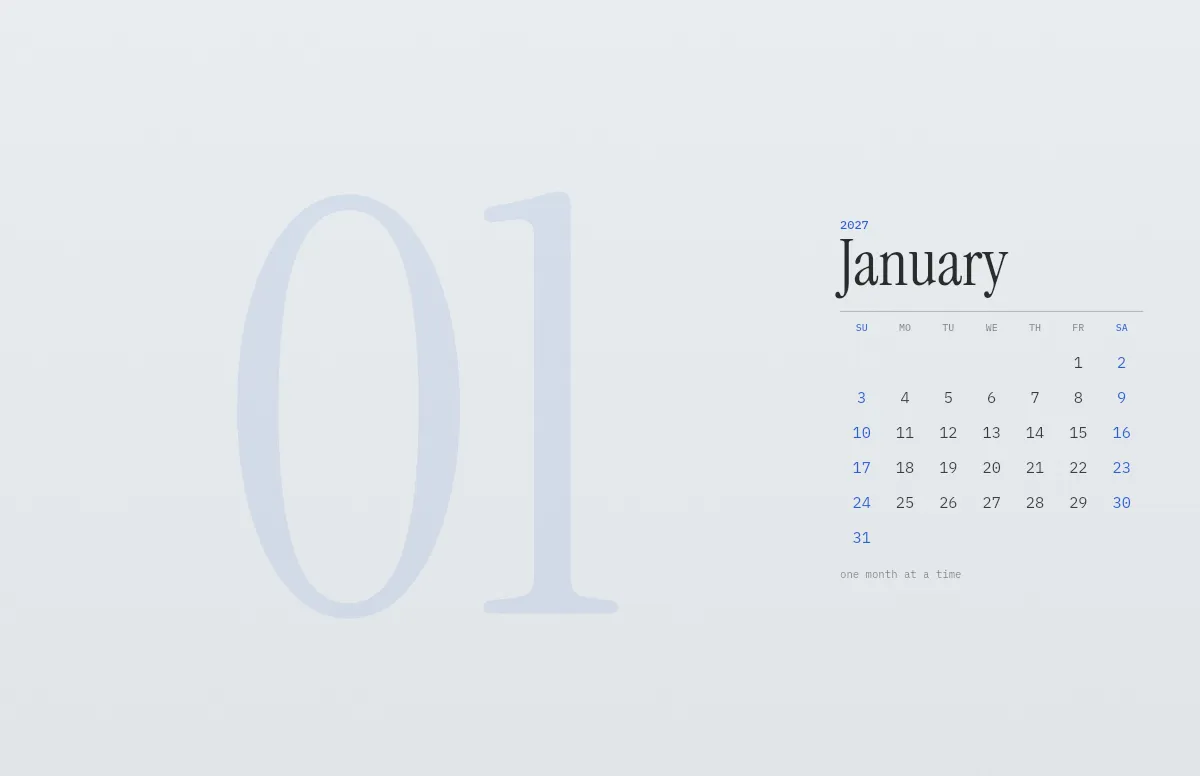
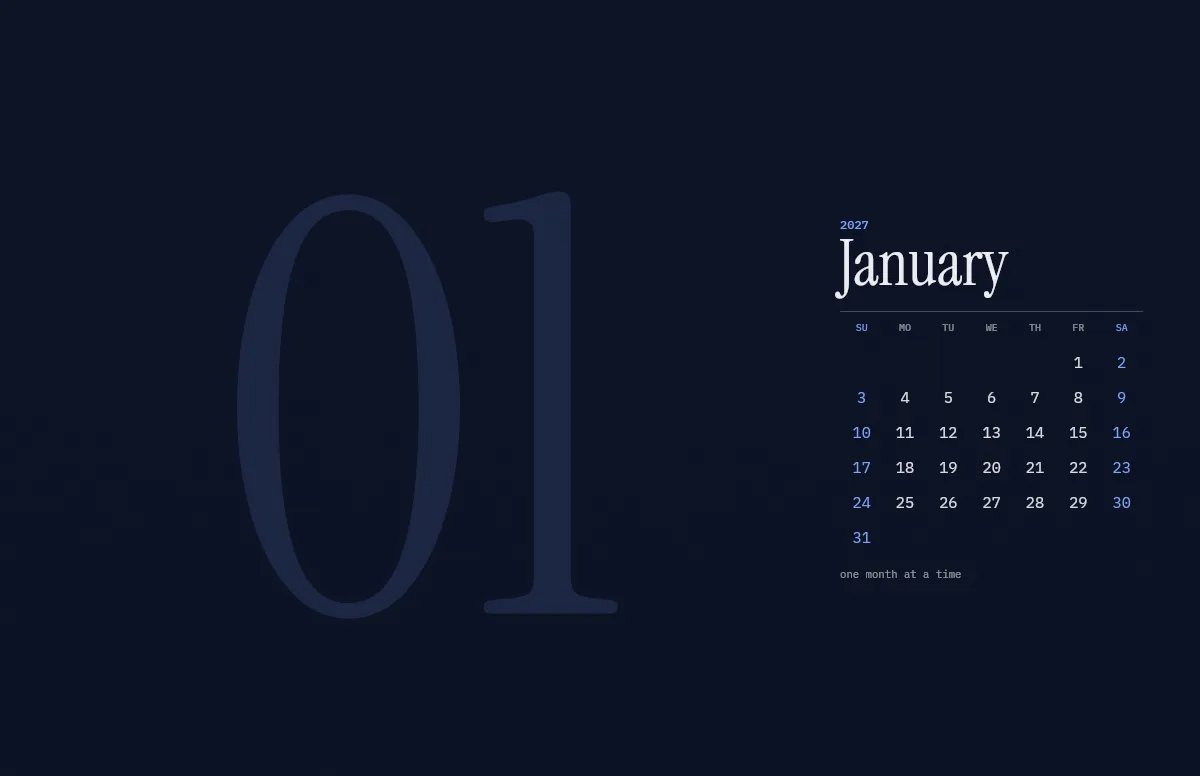
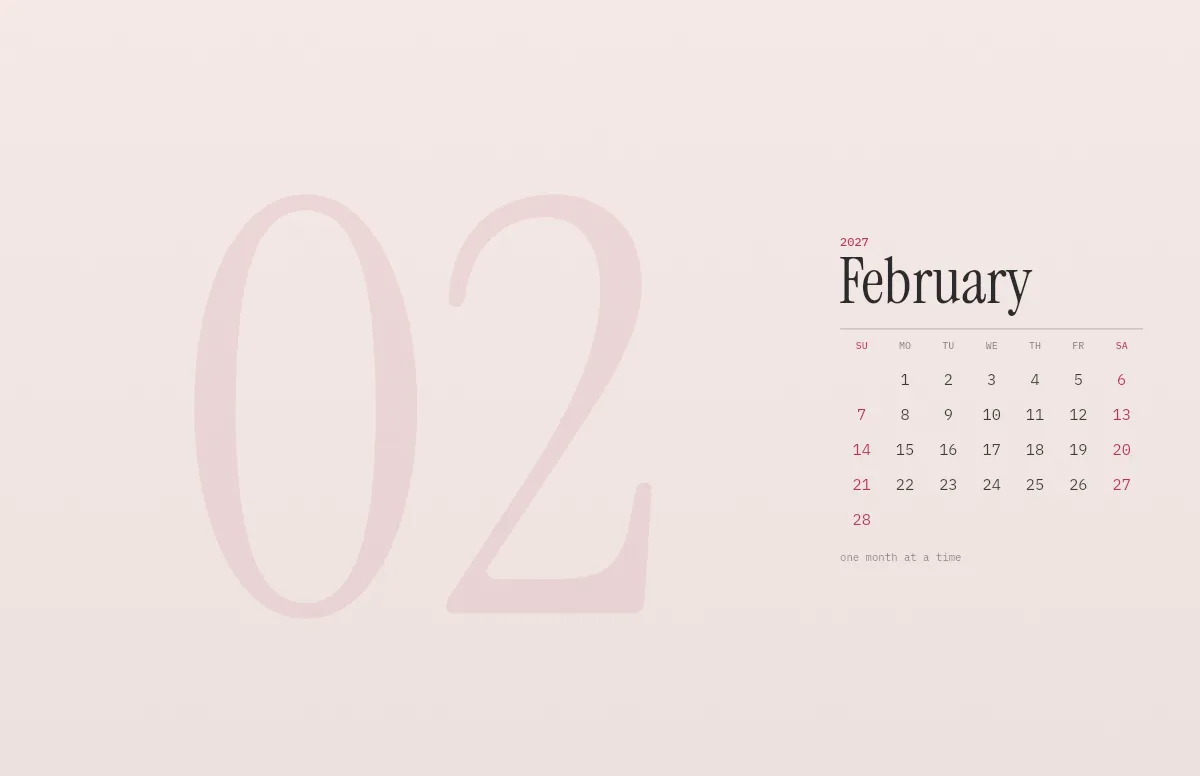
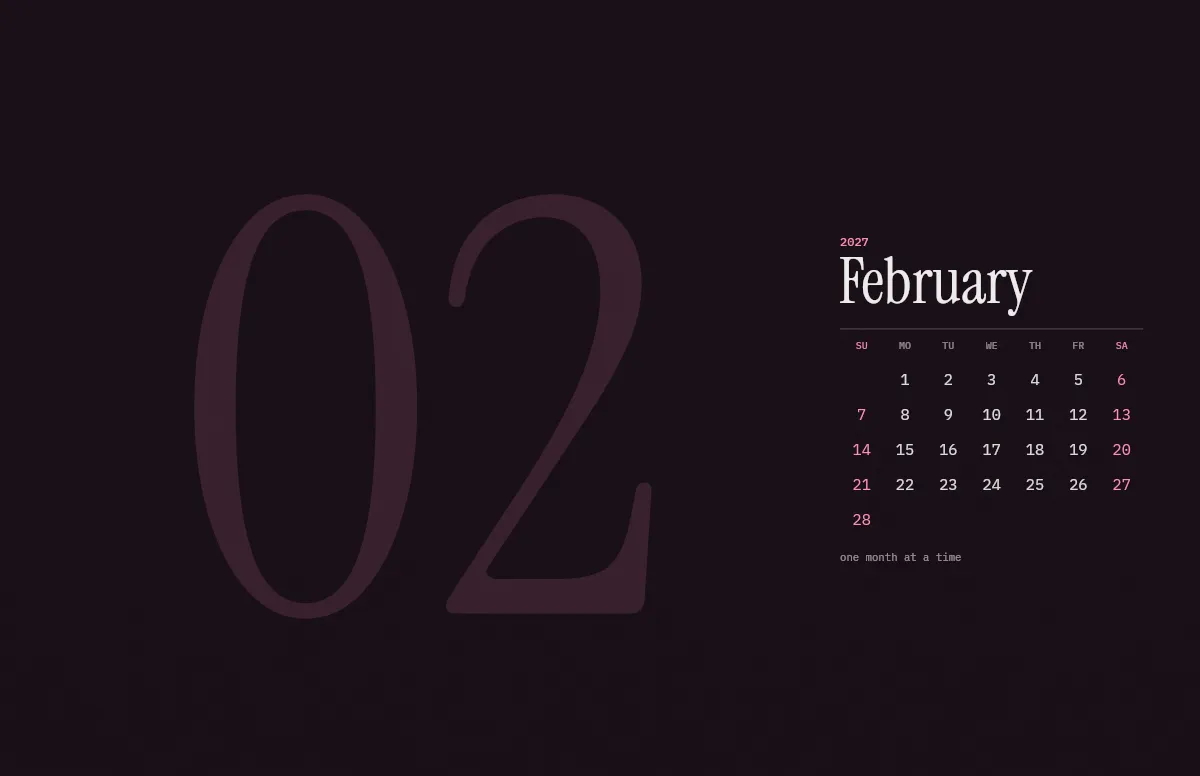
Calendar wallpaper
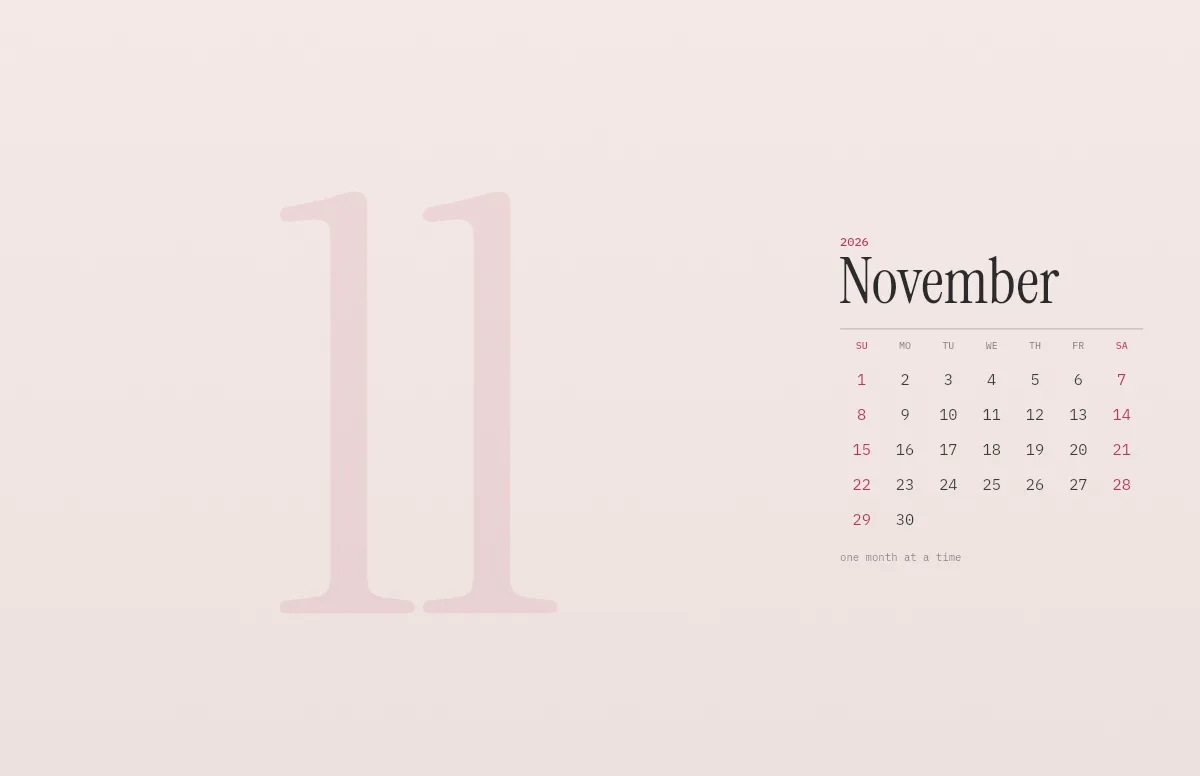
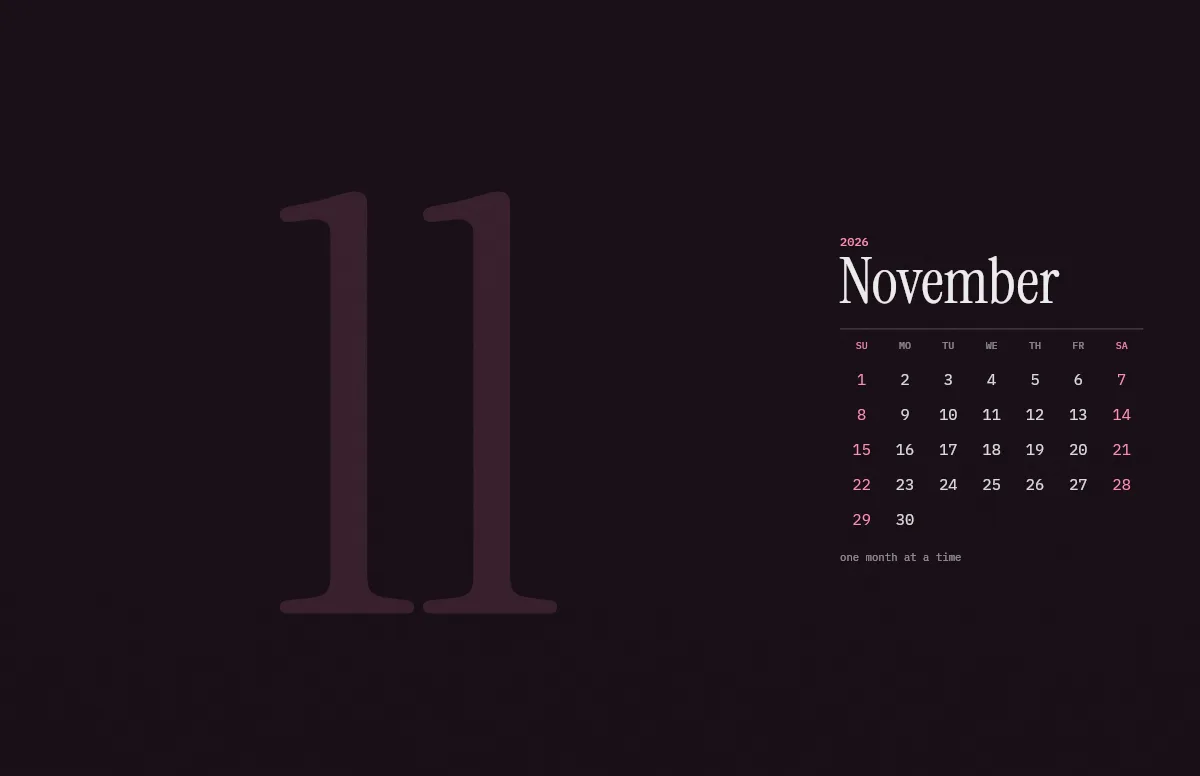
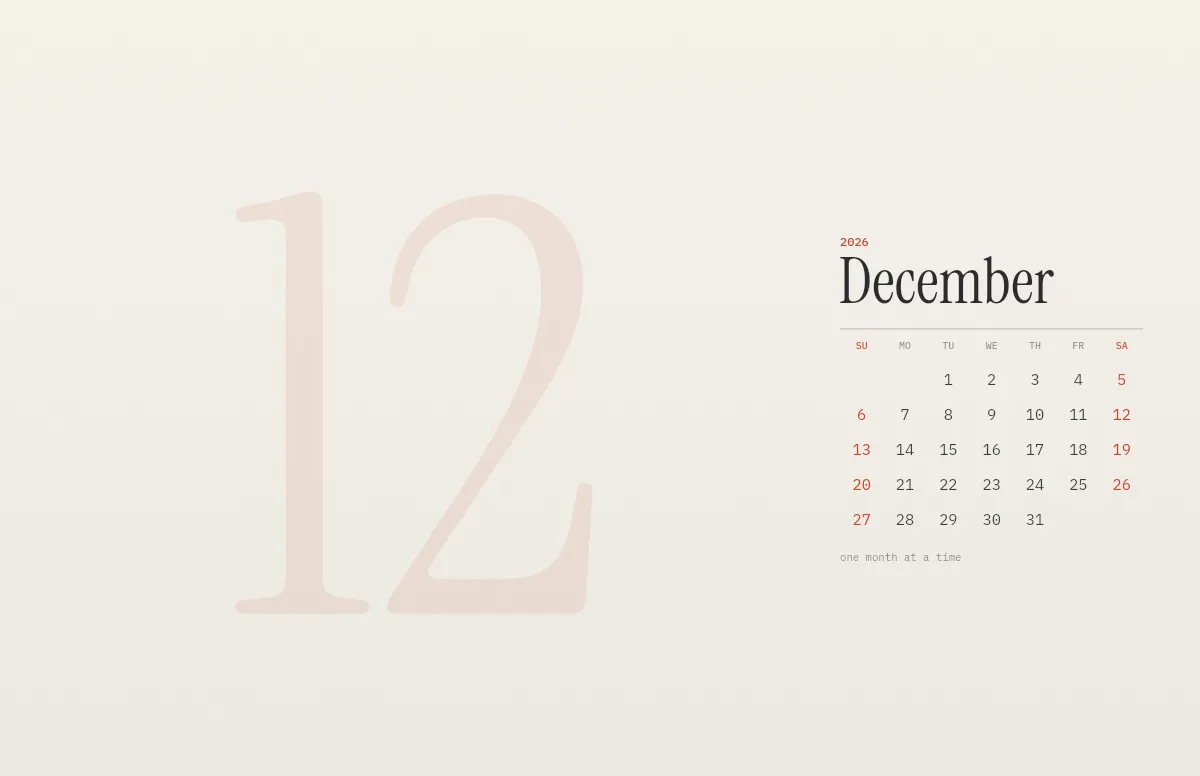
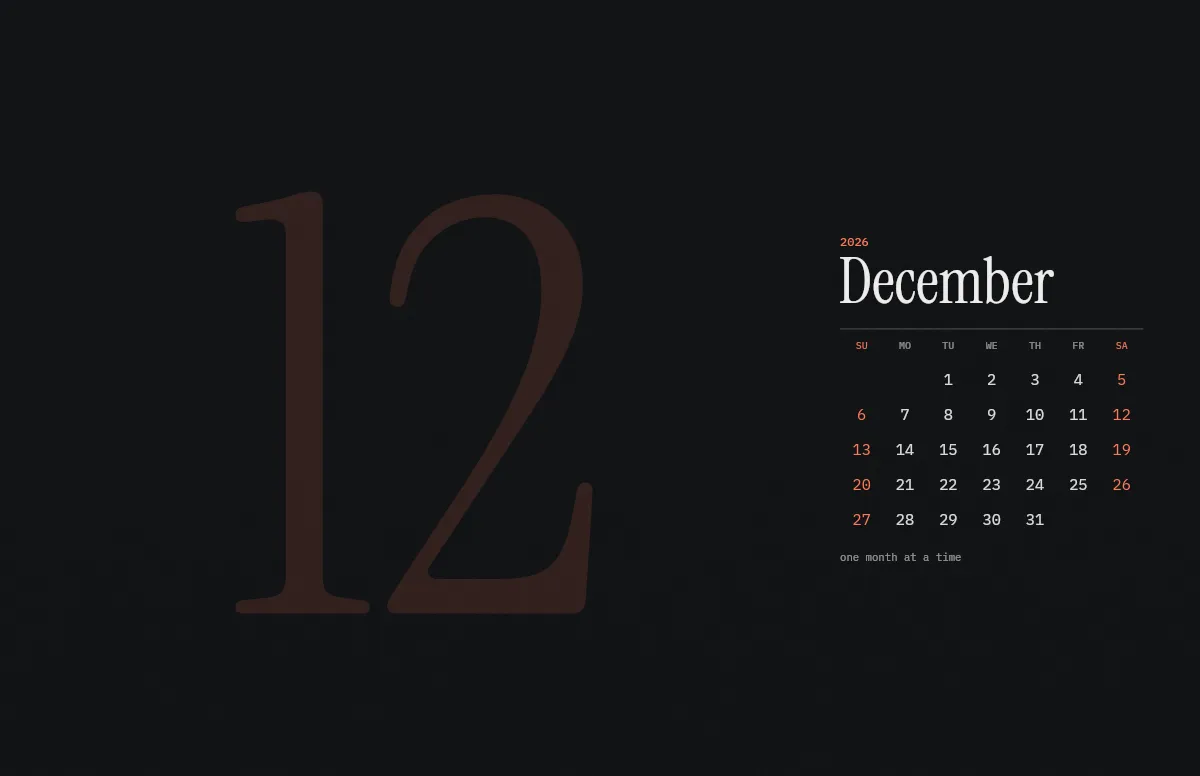
Templates
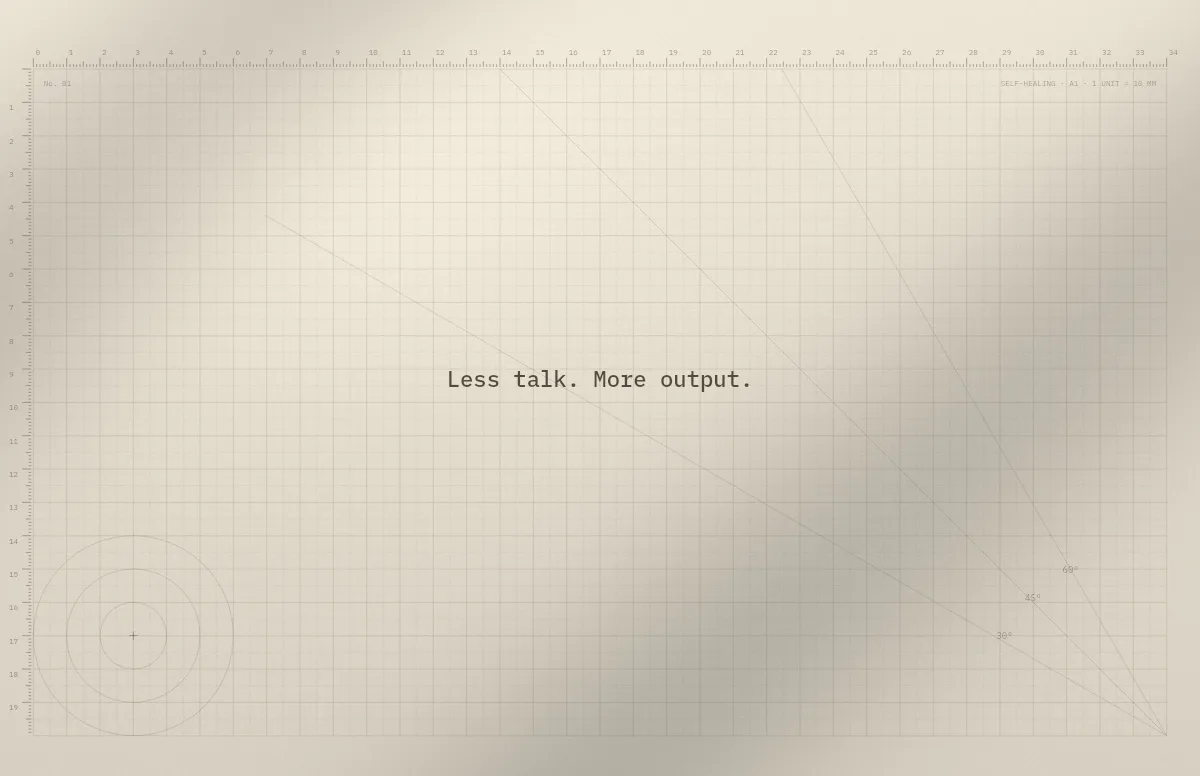
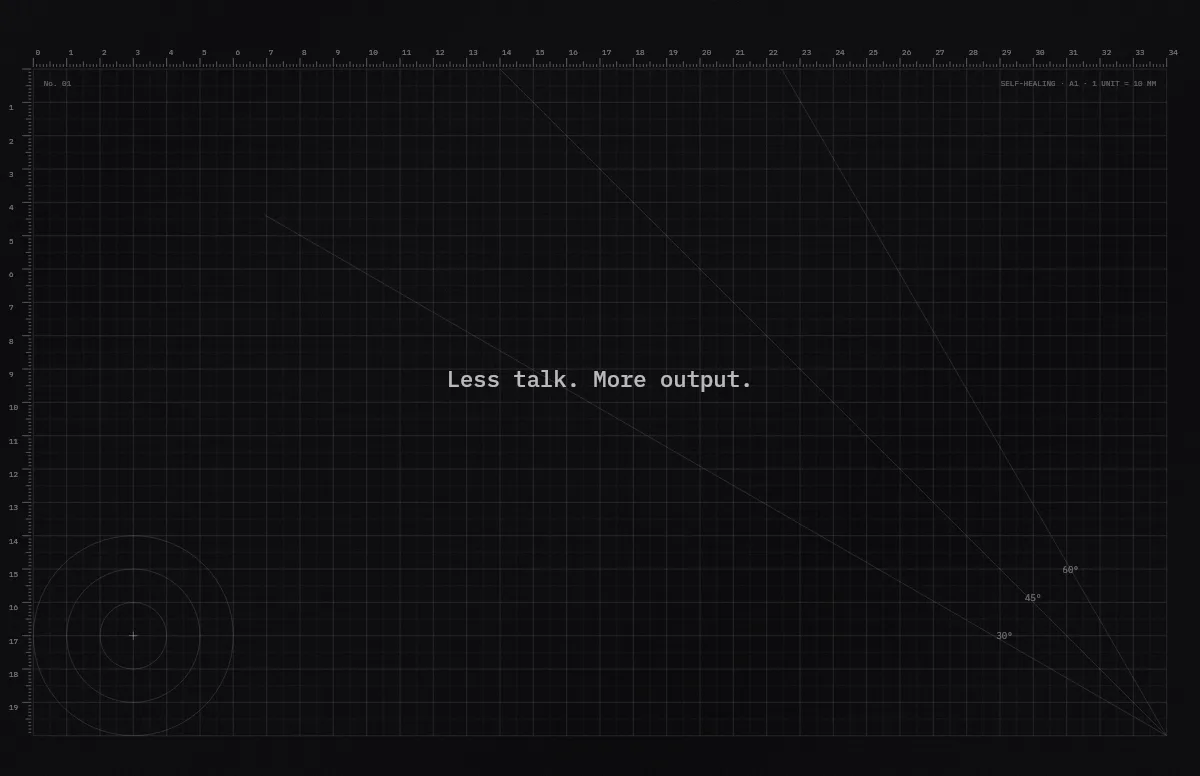
Cutting Mat
Grid, rulers and angle guides, like the mat on a designer's desk.
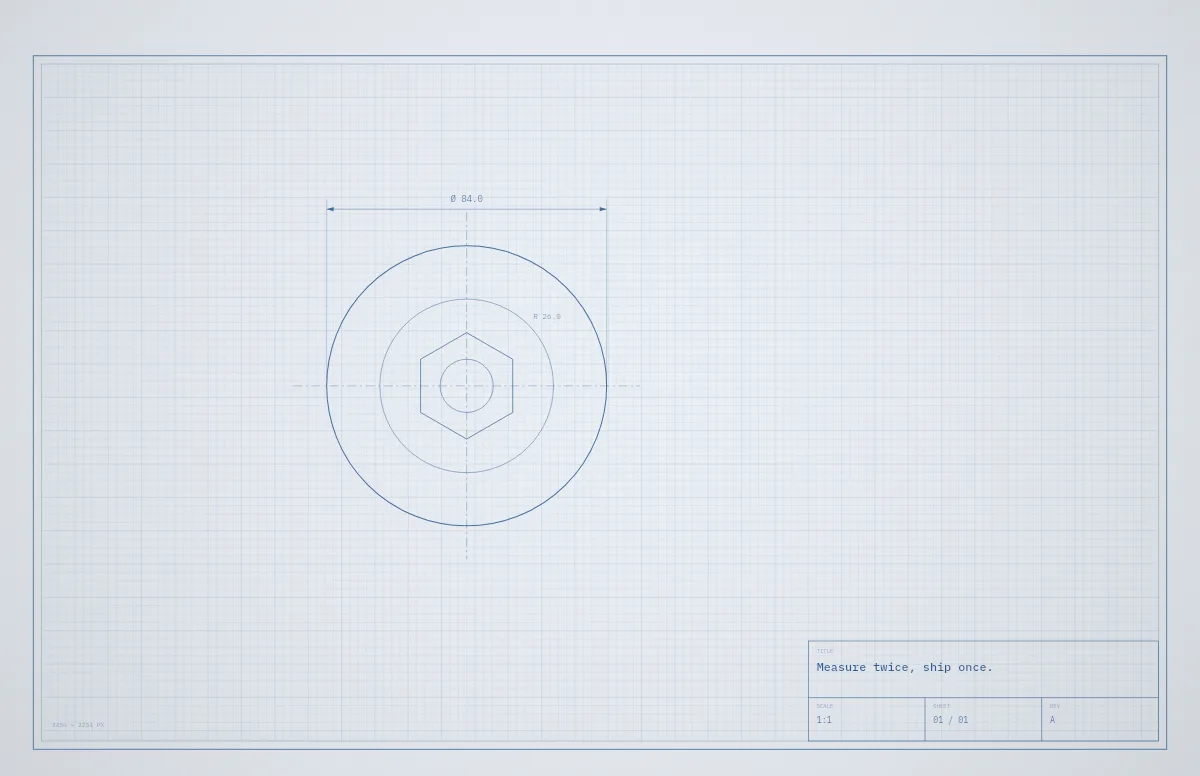
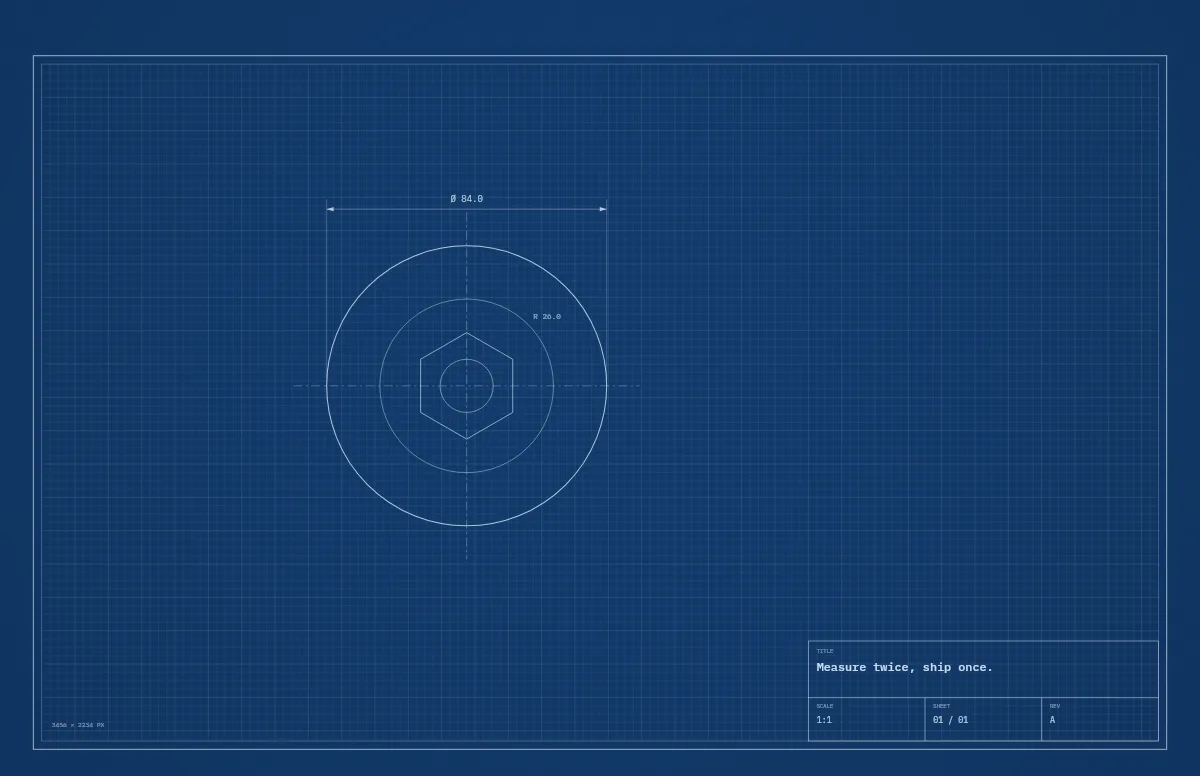
Blueprint
A technical drawing with a title block that carries your text.
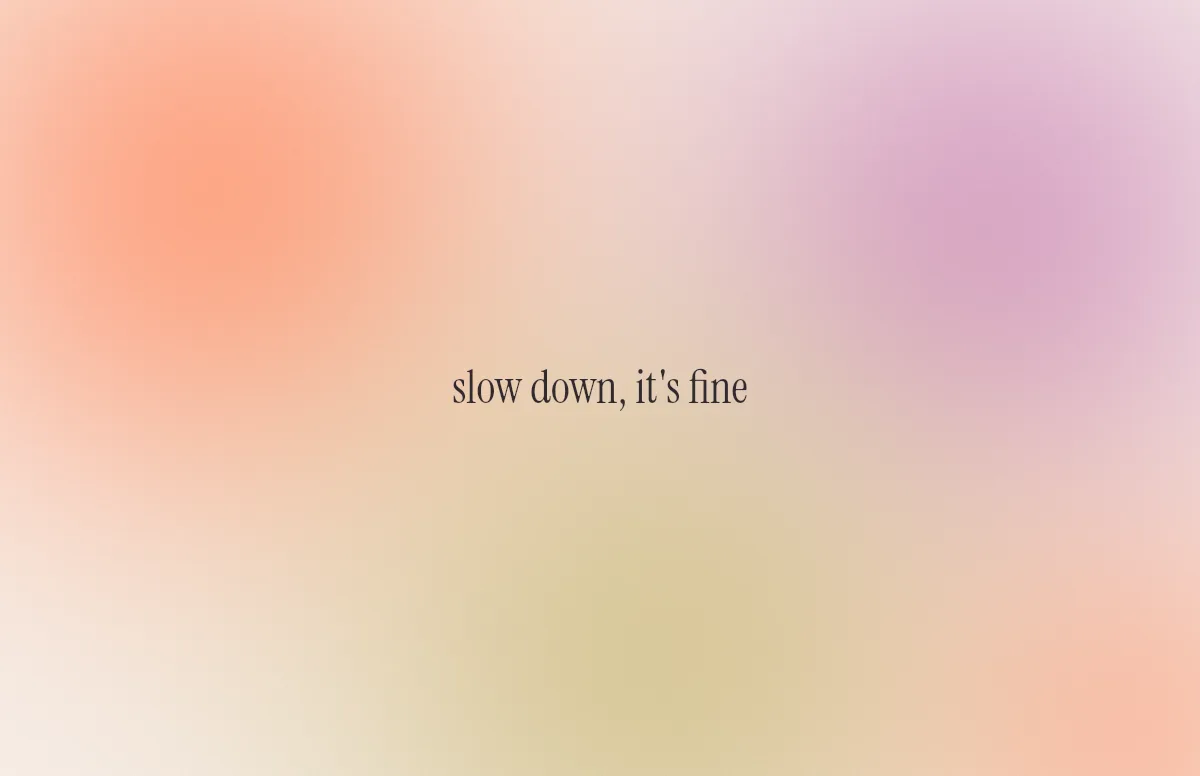
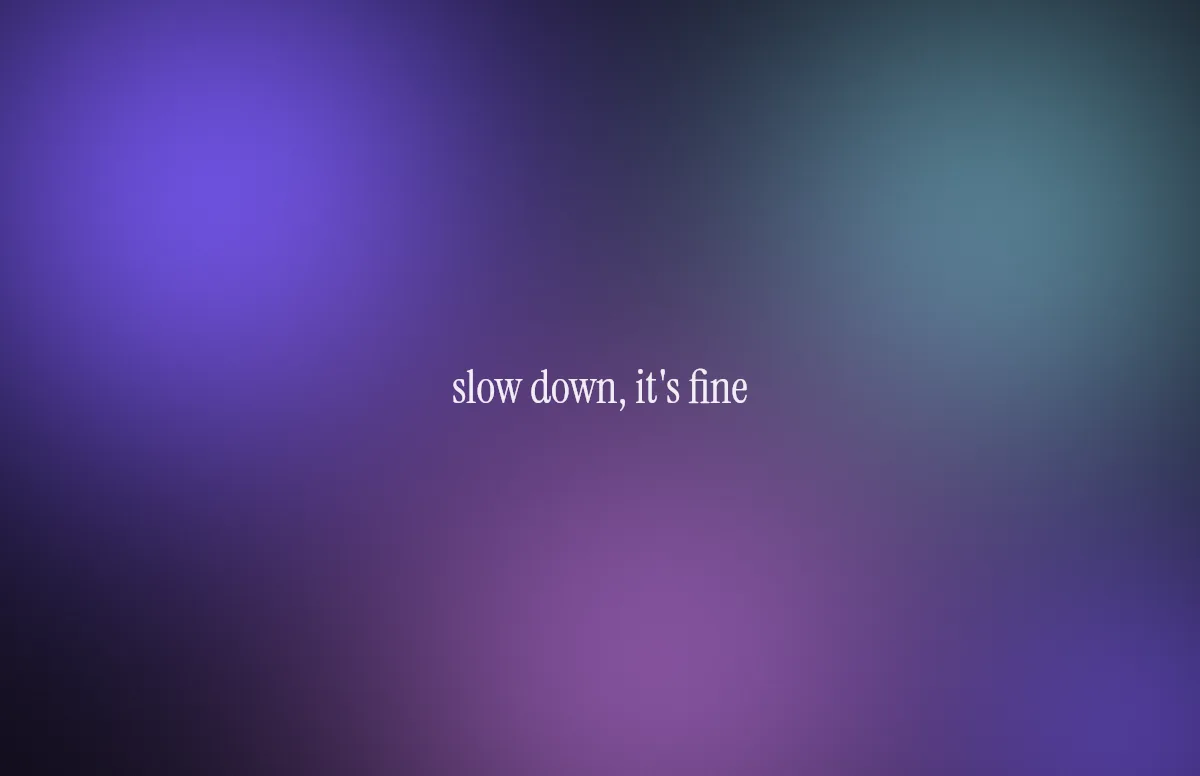
Aura
Soft color glows with a quote in a calm serif.
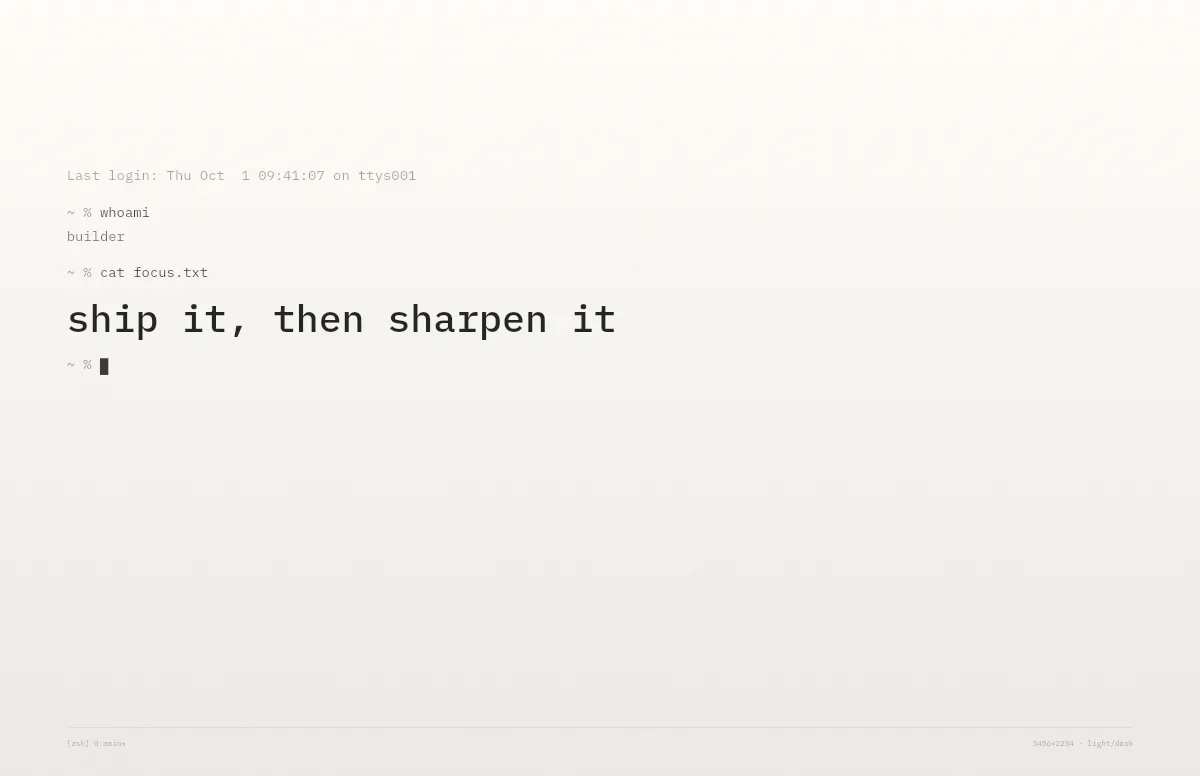
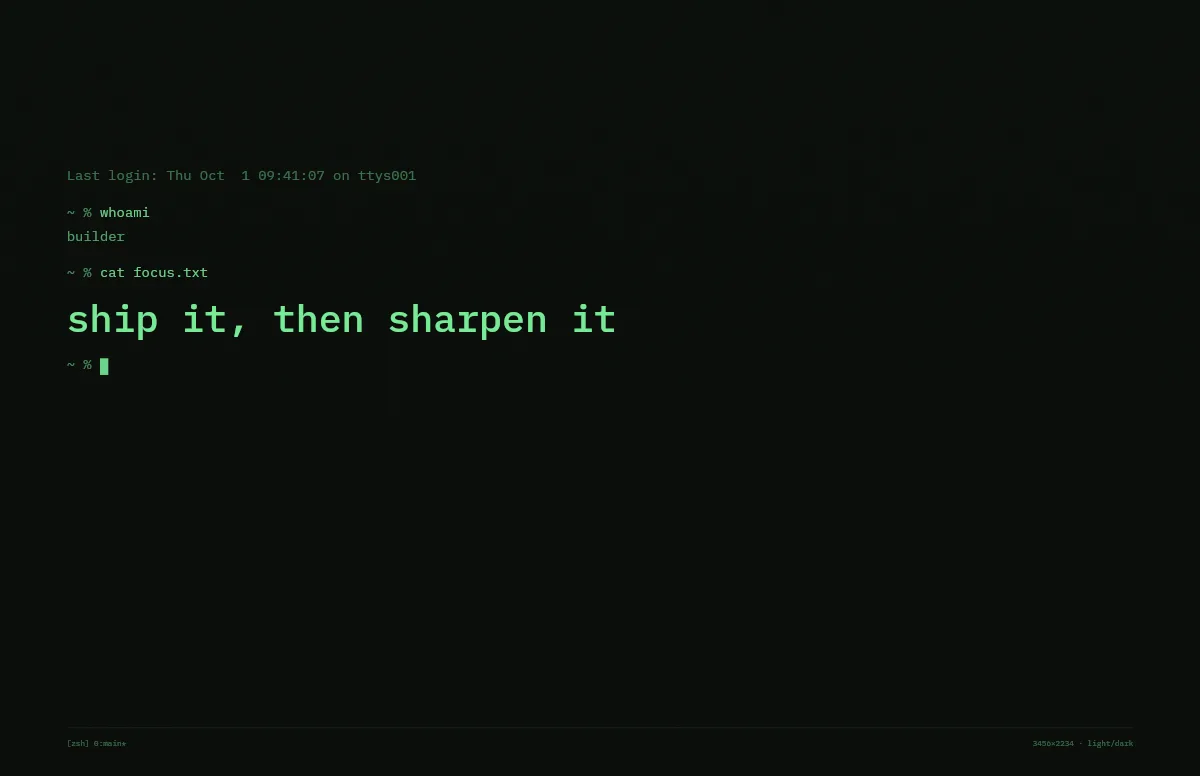
Terminal
A shell session that prints your line. Made for developers.
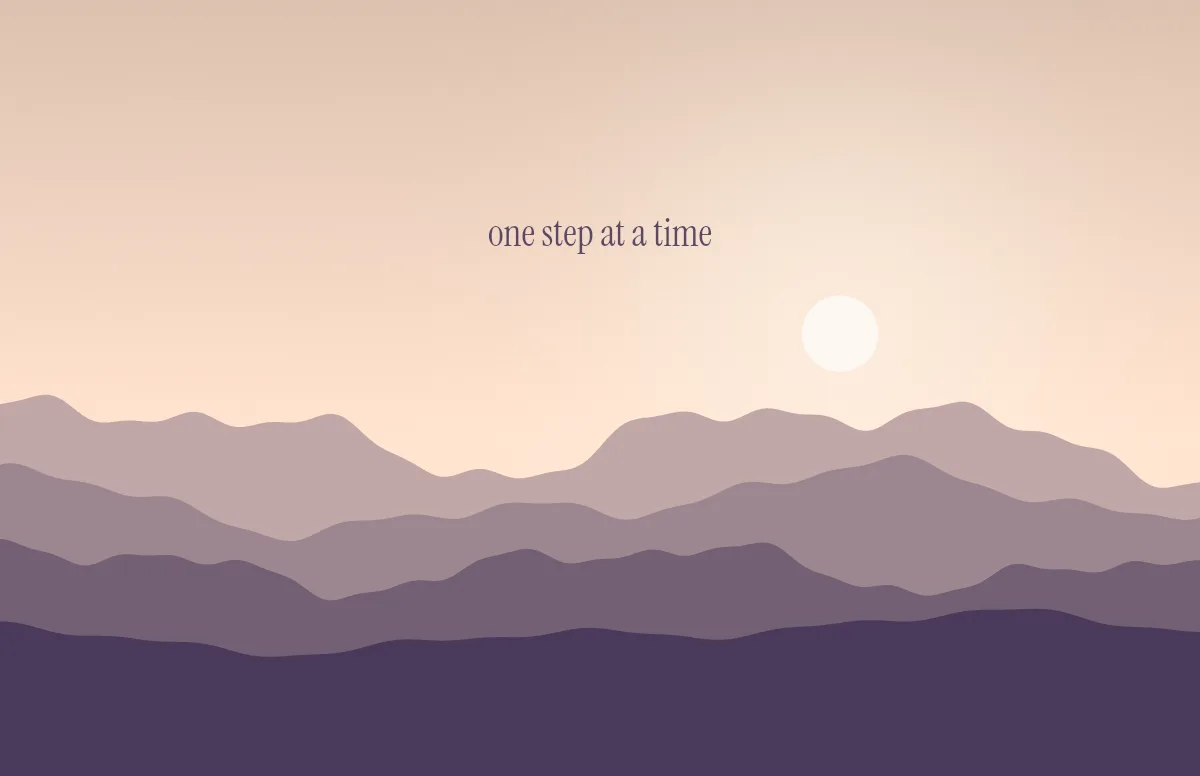
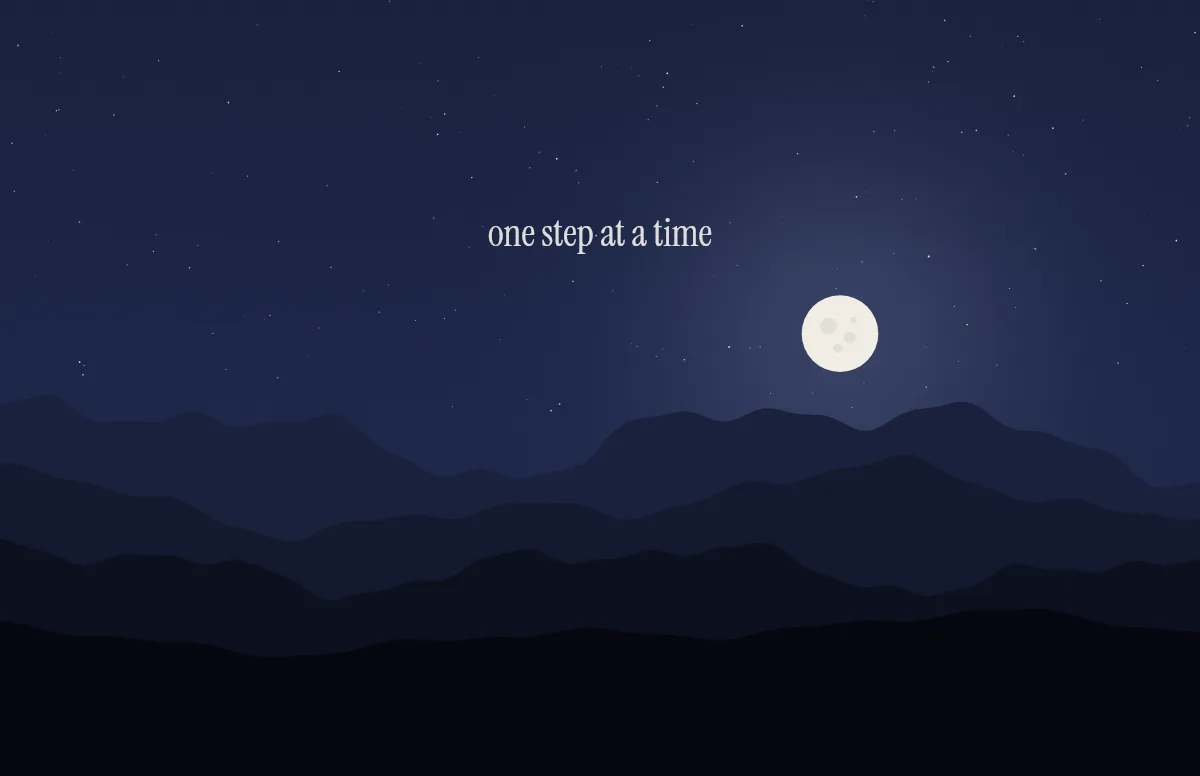
Horizon
Layered mountains under the sun by day and the moon by night.
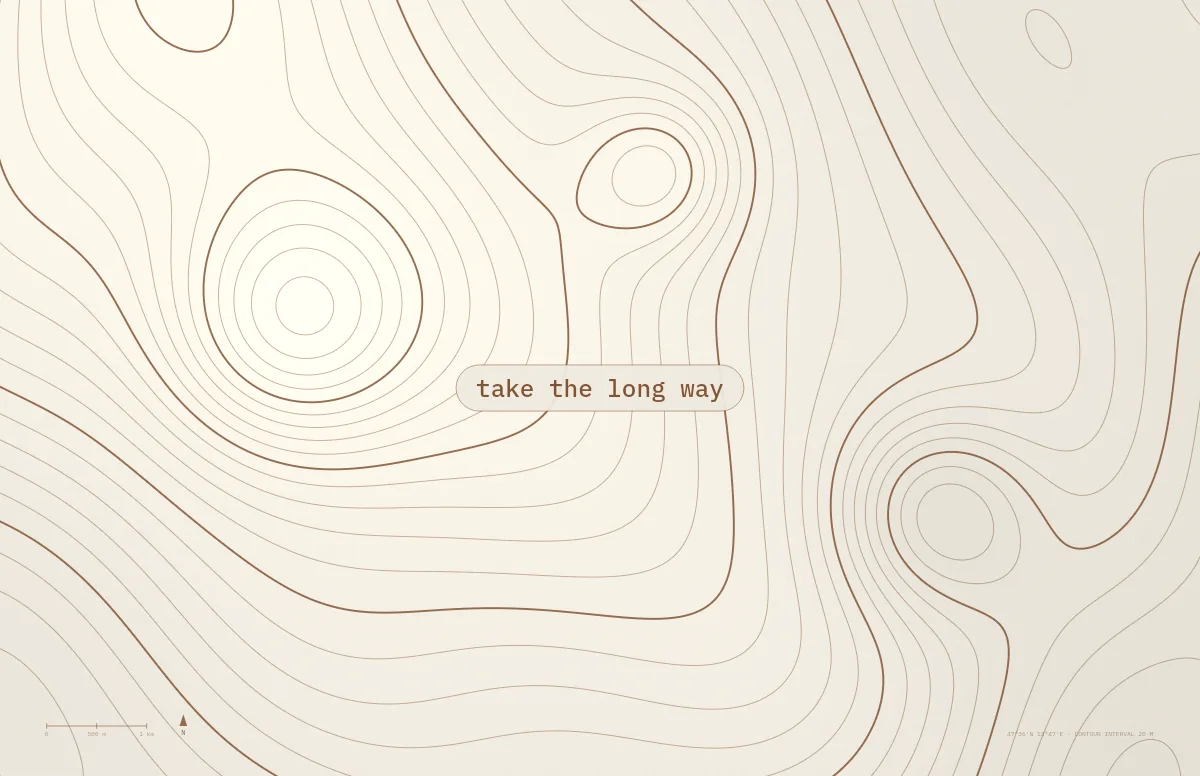
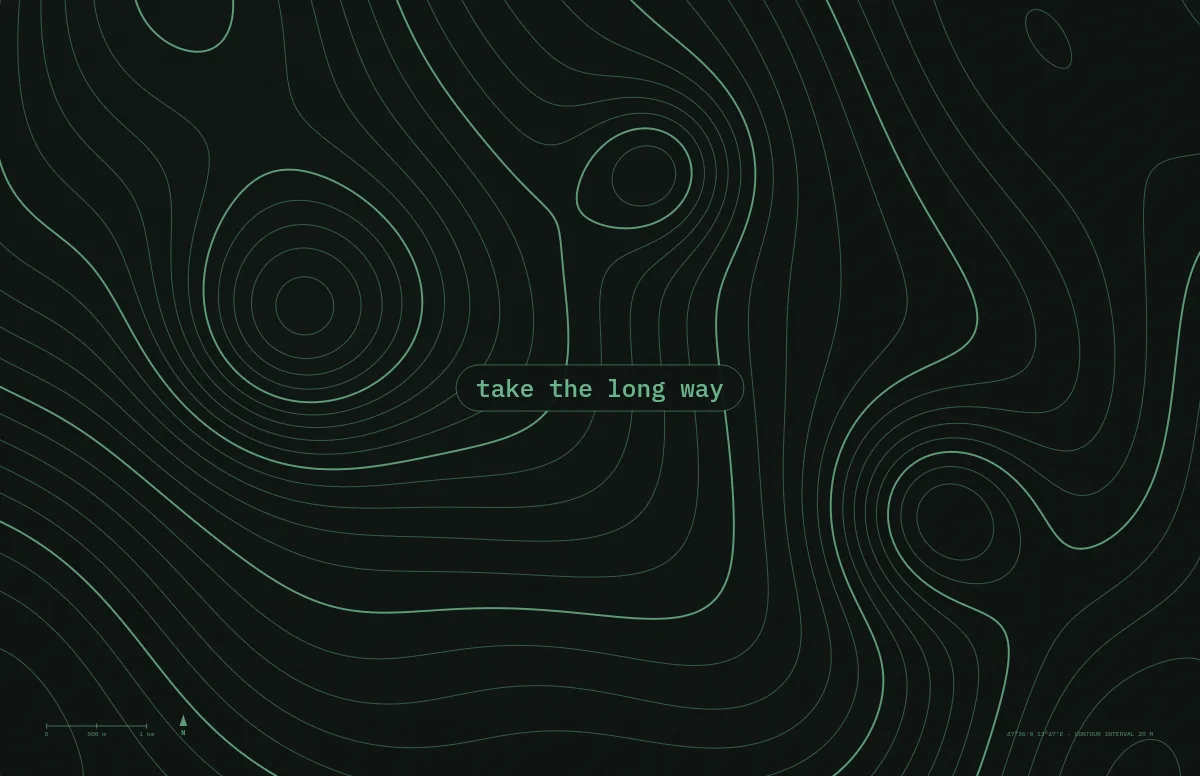
Topo
Contour lines of an imaginary mountain range, with your text as a map label.
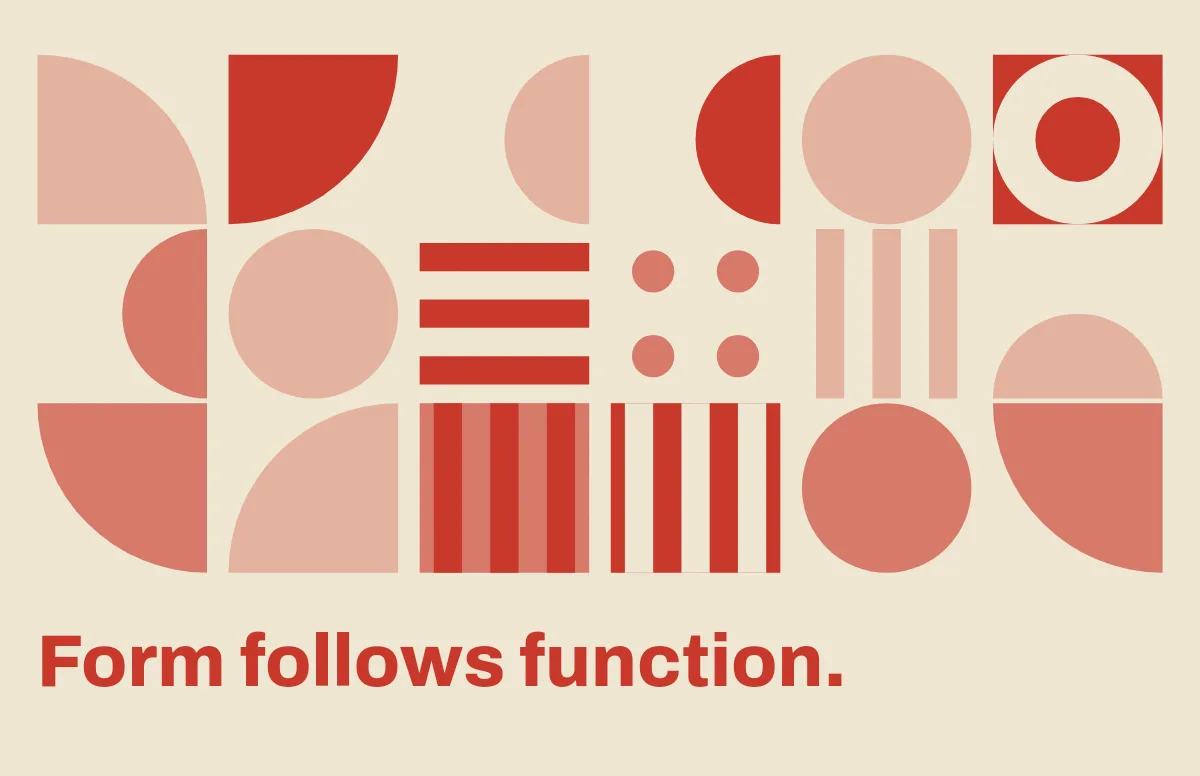
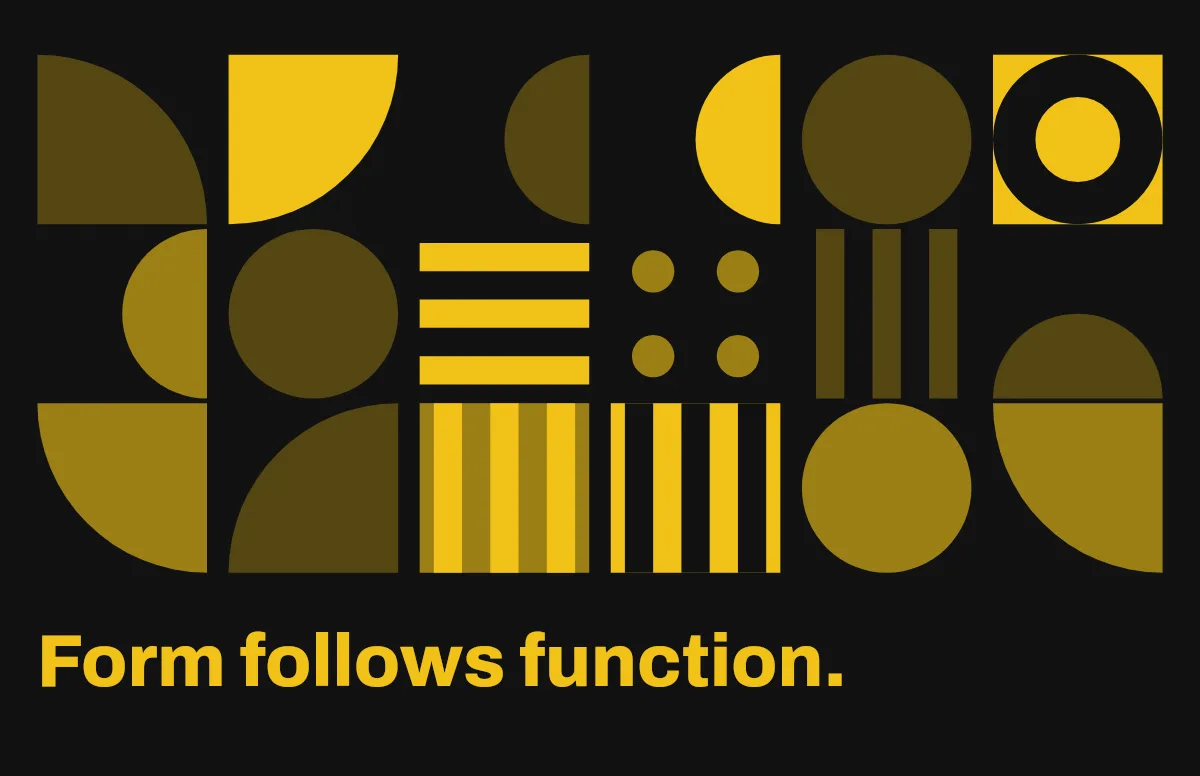
Bauhaus
Circles, quarter circles and stripes on a strict grid, with bold type.
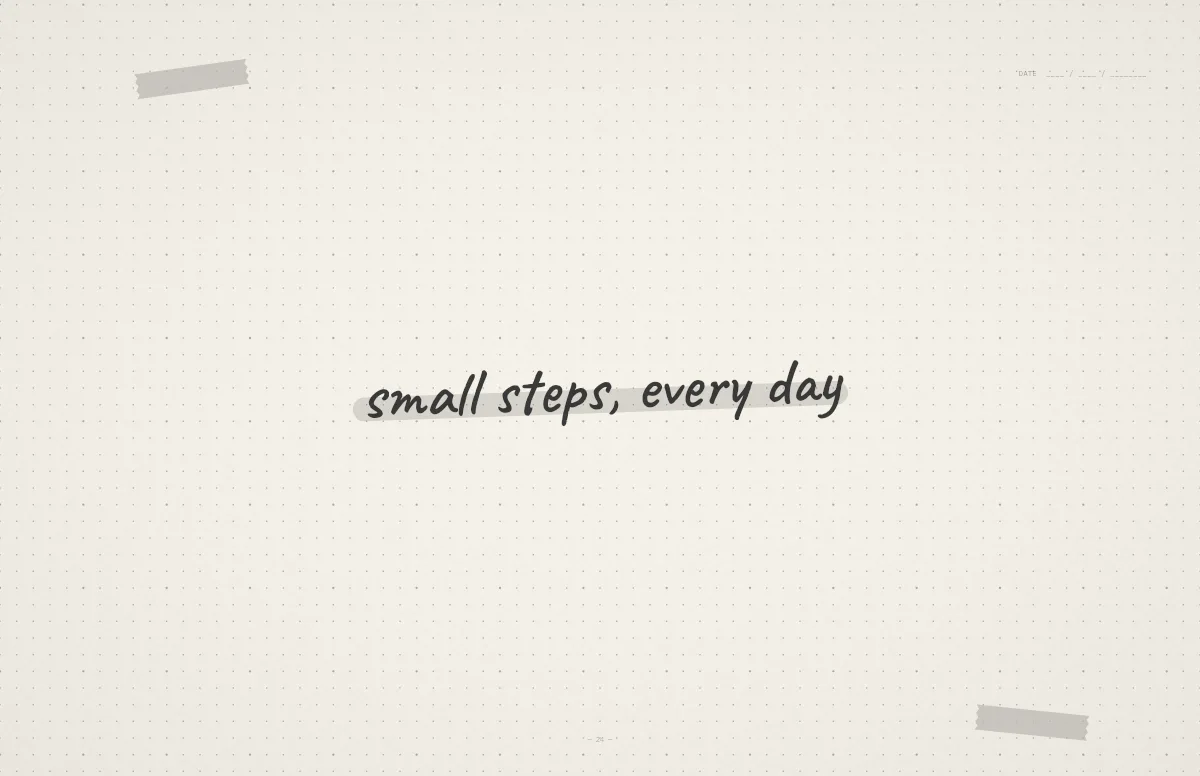
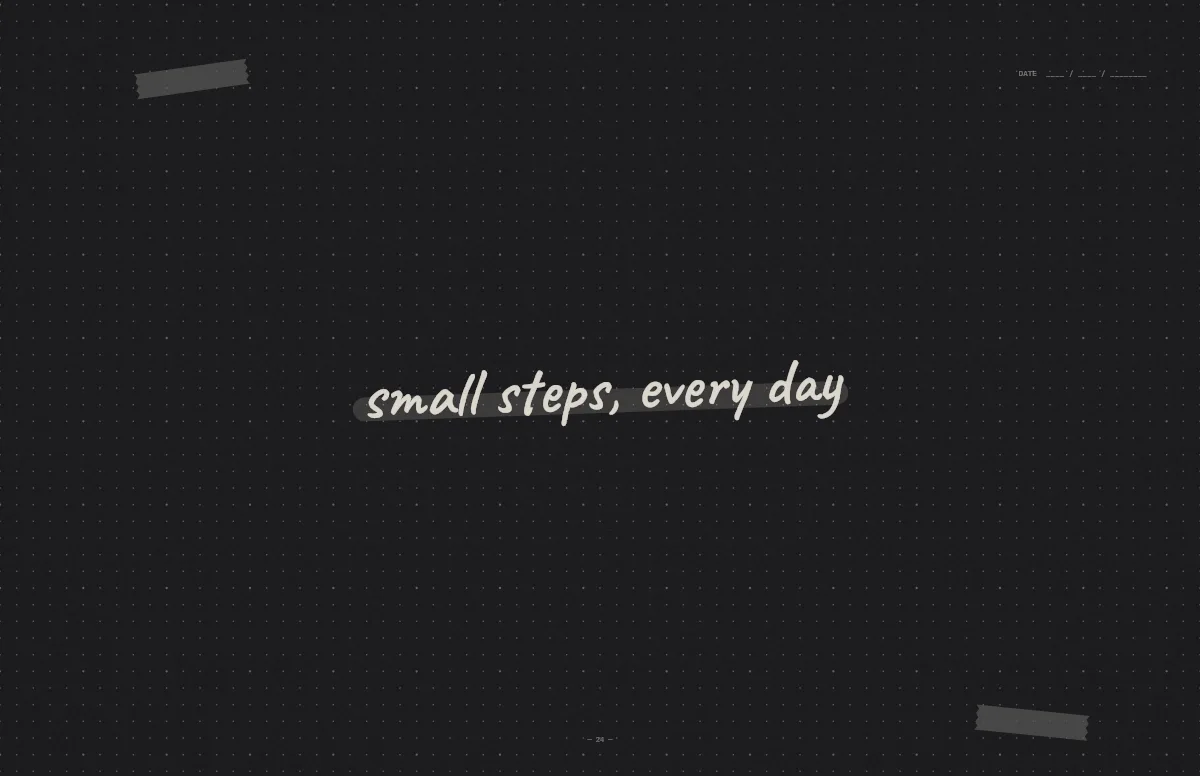
Notebook
A dotted journal page with your line in handwriting and a highlighter stroke.
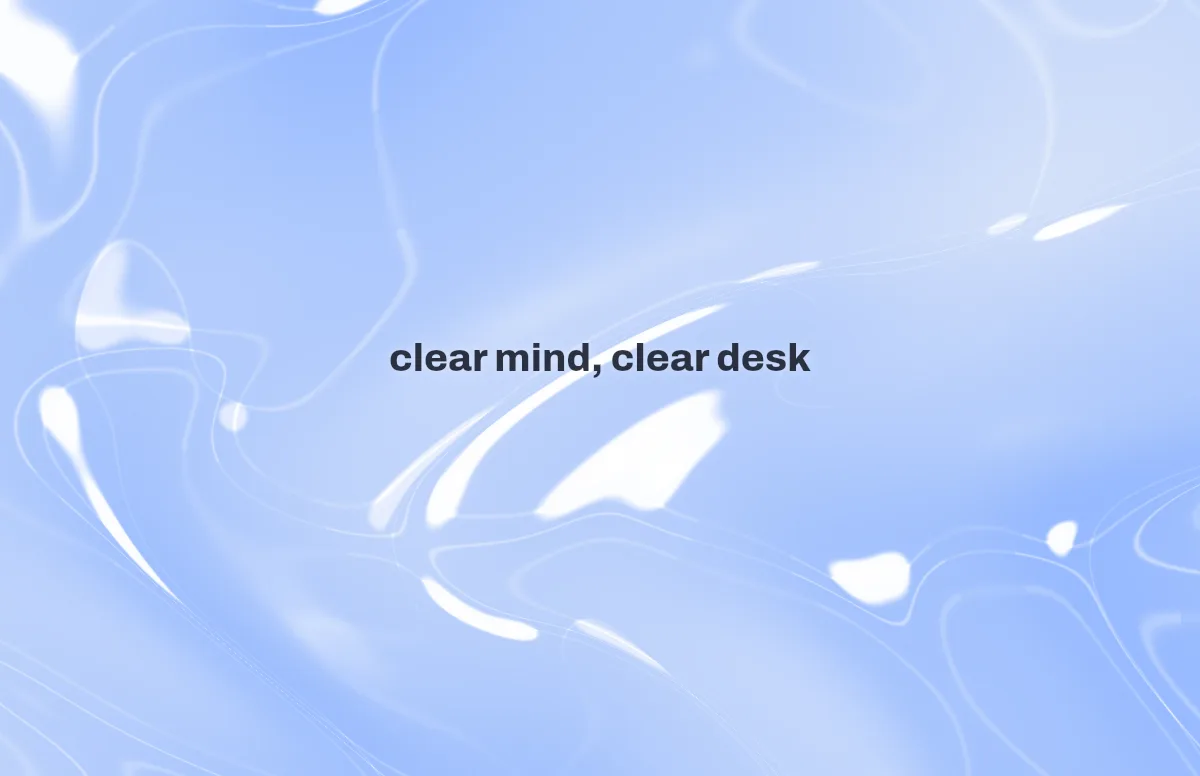

Liquid Glass
Glass shapes that bend the colors behind them, light and dark.
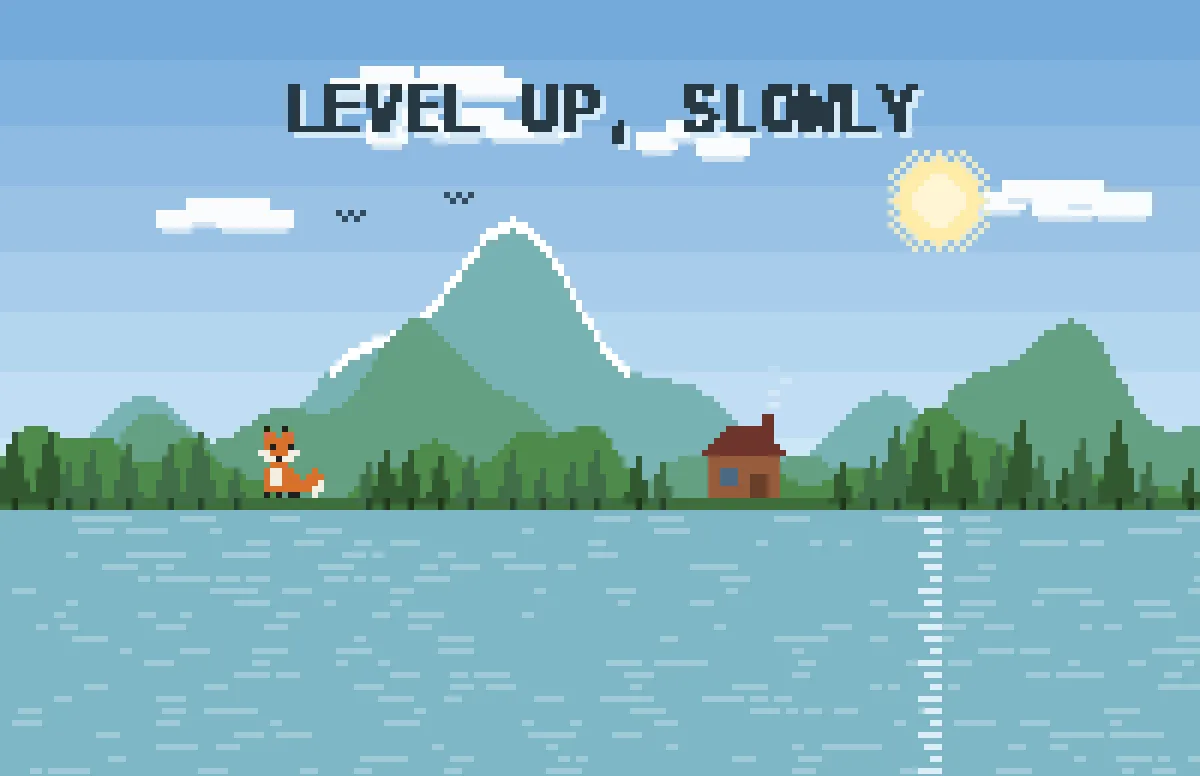
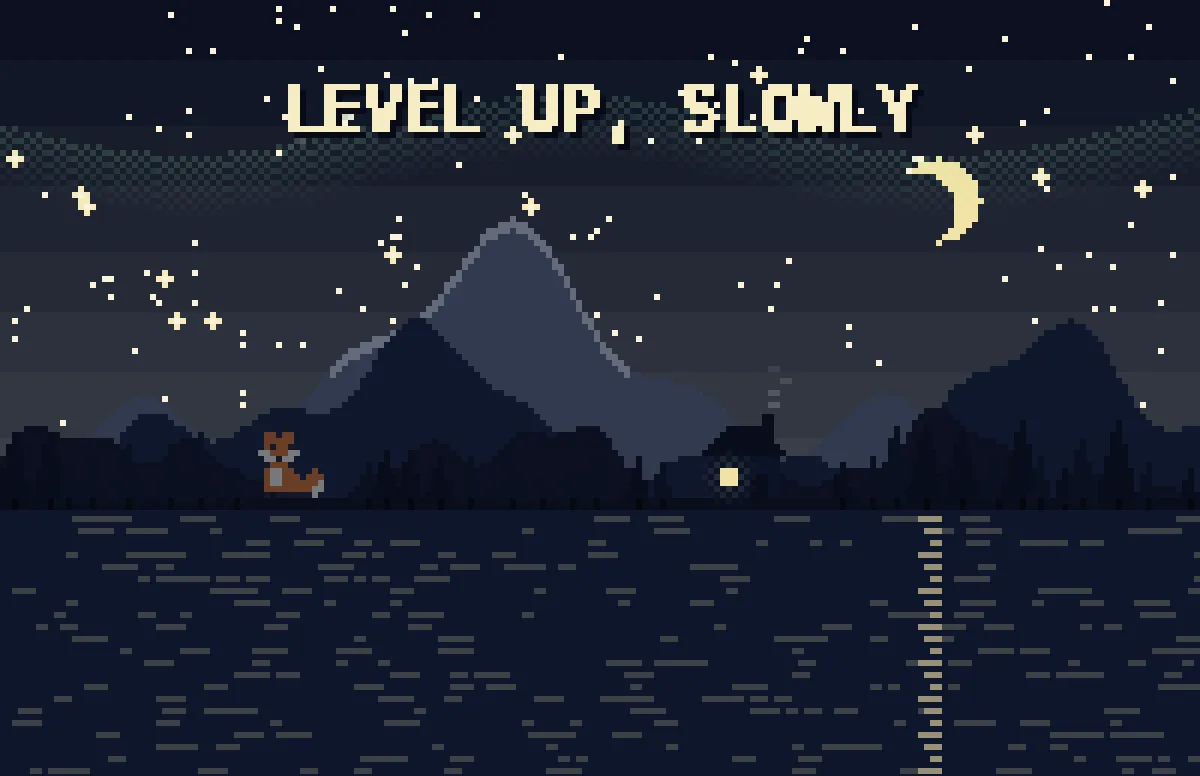
Pixel
Pixel scenes: sun by day, stars and lit windows at night.
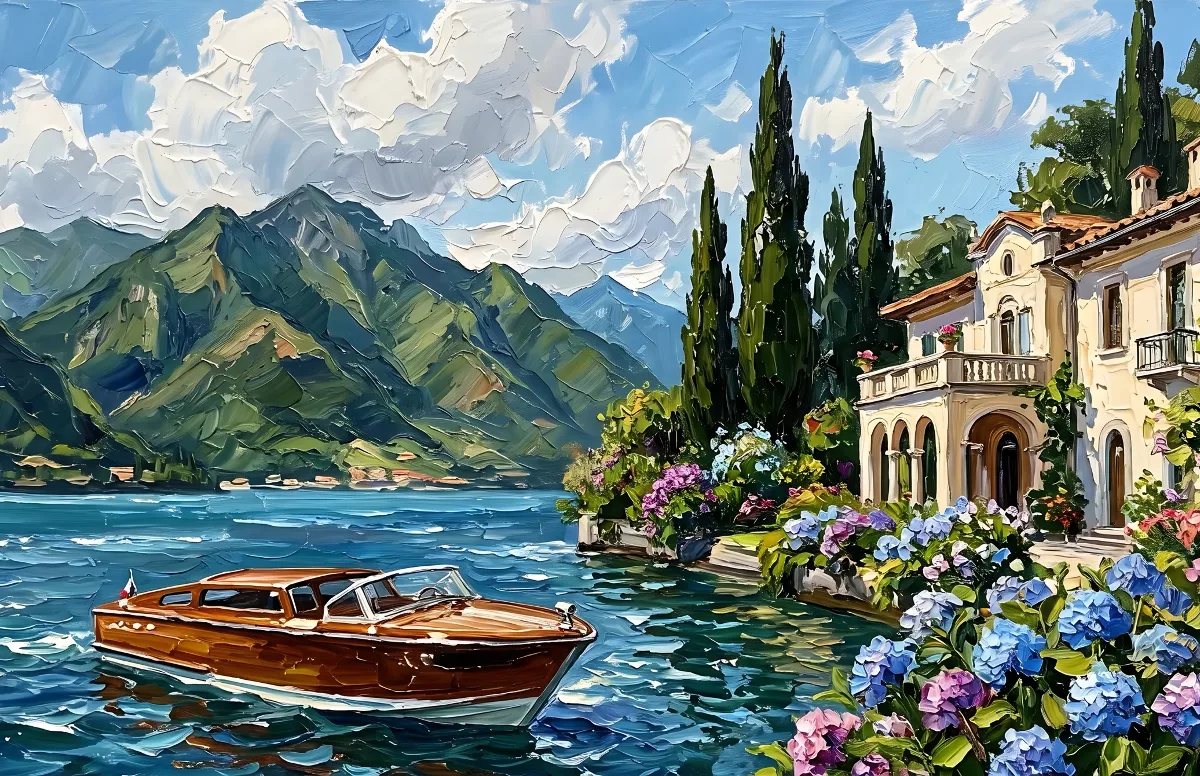
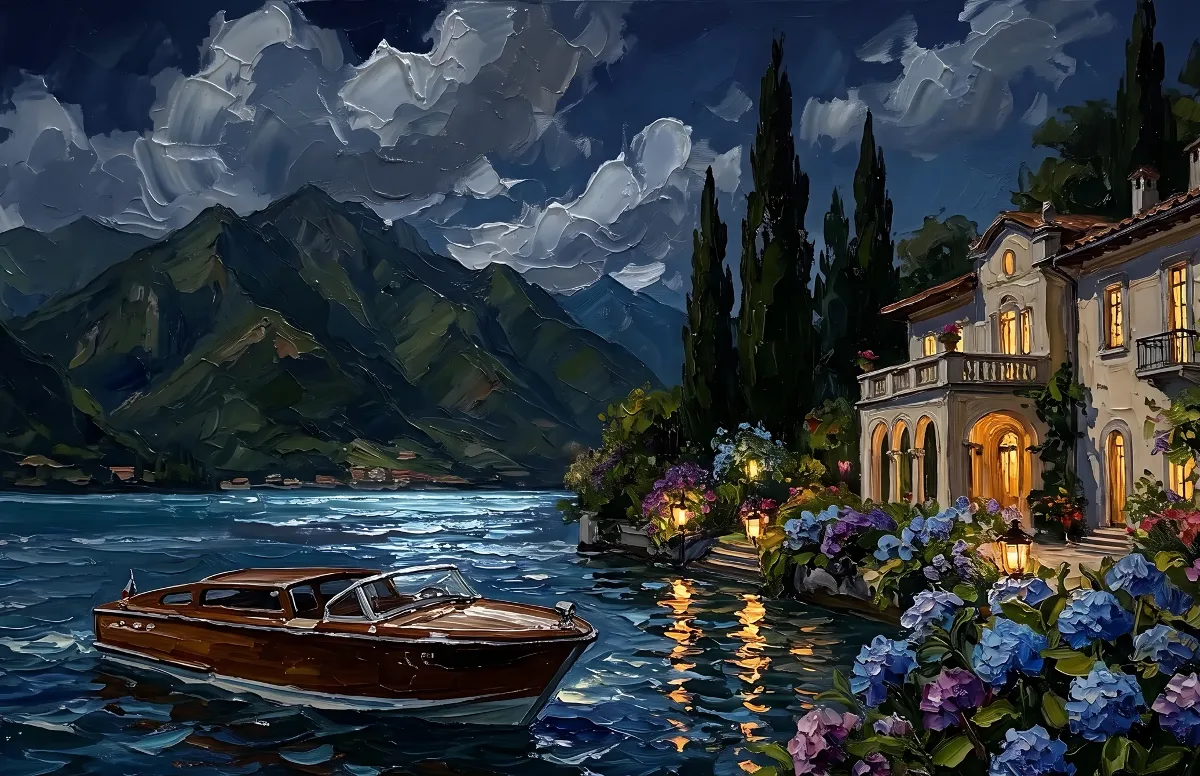
Painted
Impasto oil paintings with a day and a night version of the same scene.
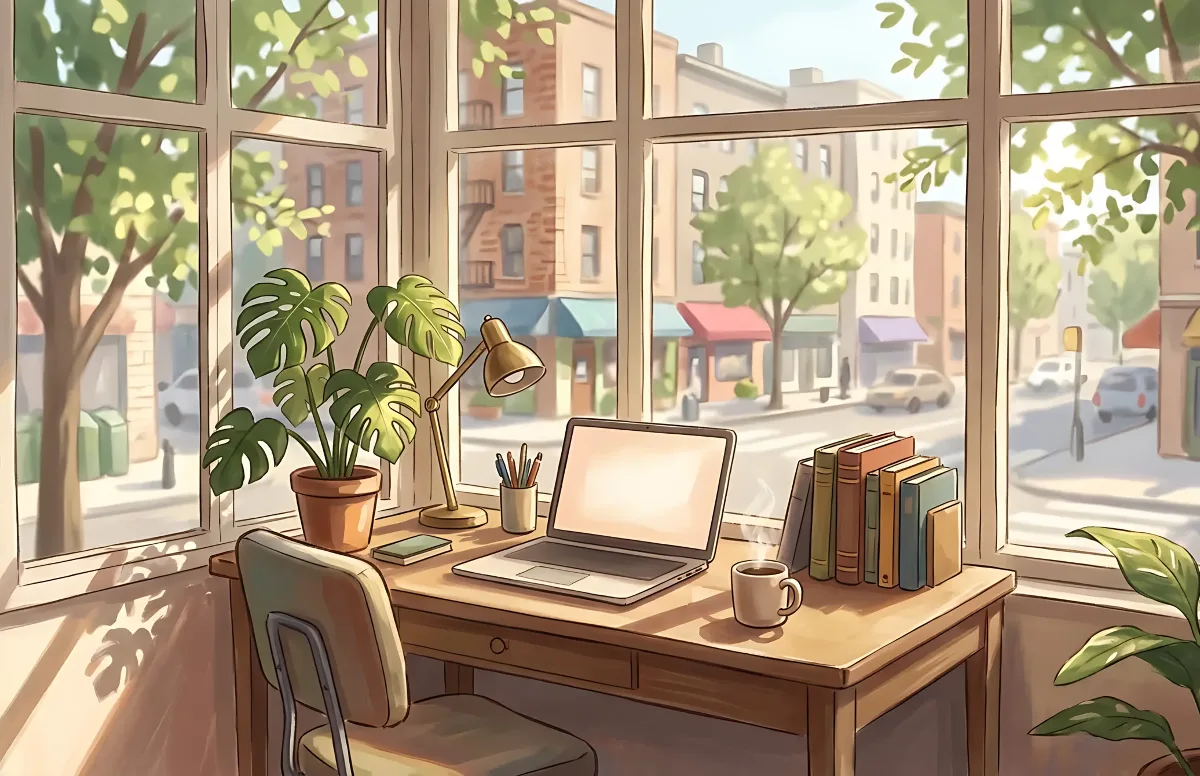
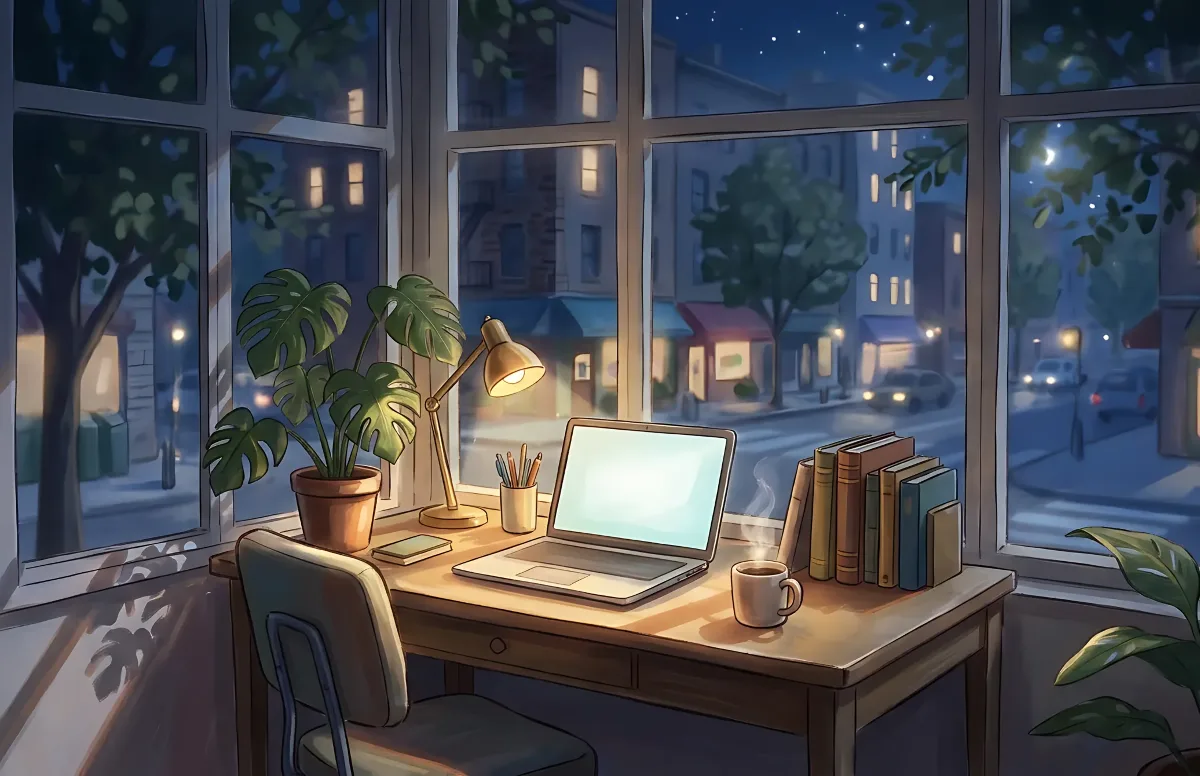
Cozy
Illustrated rooms: sunlight by day, lamp light at night.