The photo looks crisp in the Photos app. You set it as your wallpaper, and suddenly it is soft, smeared or blurred at the top. On an iPhone this is usually not a bad file but a setting, and iOS has several of them. On a Mac the cause is more often the size of the picture or the way the display is scaled. Here is every common cause, how to tell which one you have, and what fixes it.
Quick check: which kind of blur is it?
| Symptom | Cause | Fix |
|---|---|---|
| Home Screen frosted | Blur is on | Turn off Blur |
| Lock Screen blurred at the top | Picture too short or zoomed out | Native size |
| Everything a bit soft | Picture too small or zoomed in | Full-size original |
| Only during a Focus | Dim Lock Screen | Turn it off |
| Only when always on | Always-On blur | Display settings |
| Mac: soft lines | Wrong size or scaling | Native resolution |
iPhone: the Home Screen blur
This is the most common case, and it is not a bug. When you set a wallpaper as a pair, iOS can show a blurred copy behind your apps. Apple's iPhone User Guide describes the option plainly: under Customize Home Screen you can "select Blur to blur the wallpaper so the apps stand out."
To turn it off:
- Open Settings → Wallpaper.
- Under the current pair, tap Customize on the Home Screen side.
- Tap Blur so it is no longer selected, then tap Done.
You can get to the same place by touching and holding the Lock Screen, tapping Customize and choosing the Home Screen. Some users report that the empty page to the right and the App Library still look frosted even with Blur off. That is the system background of those views, not your wallpaper setting.
If the blur appeared suddenly although the switch is off, SlashGear suggests turning on Settings → Accessibility → Display & Text Size → Reduce Transparency.
iPhone: the picture is too small or zoomed
iOS can only show as many pixels as the image has. A photo saved from a website, a screenshot of a wallpaper, or a picture someone sent you is often much smaller than your display. The iPhone 18 Pro, for example, has 1206 × 2622 pixels. A picture with half that height gets stretched to fill the screen and looks soft.
Three typical sources of small images:
- Messenger apps. WhatsApp, for example, sent photos at no more than 920 × 1280 pixels in standard quality before it added an HD option, according to MacRumors. On a current iPhone that is less than half the needed height. Send wallpapers in HD or as a file.
- Social media and web previews. Long-pressing an image on a website often saves a preview, not the original.
- Screenshots. A screenshot of a wallpaper shown inside an app is smaller than the wallpaper itself.
Zooming makes it worse. When you pinch to enlarge a photo while setting it, iOS crops and scales up the visible part. And if you zoom out or move the photo down so it no longer reaches the top, the Lock Screen fills the gap with a blurred band. That is the classic "blurry at the top" case. The fix for both: use an image with the exact resolution of your model and do not change the framing. The iPhone wallpaper size table lists every model.
iPhone: blur that comes and goes
Two settings only blur the wallpaper at certain times:
- Focus. A Focus can dim the Lock Screen. Go to Settings → Focus, choose the Focus, tap Options and turn off Dim Lock Screen. Repeat for every Focus you use, including Sleep.
- Always-On display. On iPhones with Always On, iOS 26 started blurring the wallpaper instead of only dimming it, reported 9to5Mac. You can switch back under Settings → Display & Brightness → Always On Display.
The depth effect, where the subject of a photo steps in front of the clock, does not make a picture blurry, but it can push the clock behind a soft edge. Placement tips are in keeping the lock screen clock clear.
Mac: the picture does not match the display
On a Mac the setting is rarely to blame. macOS shows a wallpaper pixel for pixel only when the image has exactly the native resolution of the display. The 14-inch MacBook Pro with notch needs 3024 × 1964, the MacBook Air 13″ needs 2560 × 1664. A picture made at the smaller "looks like" size, such as 1512 × 982, is stretched to twice its size and every line gets soft. The full list for every model is in MacBook wallpaper size.
Next to your photo in System Settings → Wallpaper, macOS also offers placement options. Apple lists Fill Screen, Fit to Screen, Stretch to Fill Screen, Centre and Tile. Fill Screen enlarges and crops an image that does not match the aspect ratio, Stretch distorts it. Only an image with the right size looks the same in every mode.
Mac: scaled external displays
On an external monitor, the display mode matters as much as the image. With a 4K monitor set to "looks like 2560 × 1440", macOS draws the desktop at 5120 × 2880 and then scales it down to the panel's 3840 × 2160, as Byte Cellar explains. The result is sharp, but a wallpaper at exactly 3840 × 2160 is now scaled twice and loses some crispness. Fine grids and small text in the picture show it first; photos usually hide it.
27-inch monitors with 2560 × 1440 pixels have a different problem. MacMost points out that in-between modes such as "looks like 1920 × 1080" do not map cleanly to the physical pixels and make everything look a little fuzzy, wallpaper included. On those screens, the native mode gives the sharpest picture.
Using two different screens? Each one needs its own image in its own size. The guide to a different wallpaper on each monitor shows how to set that up.
Make a wallpaper that stays sharp
The simplest way to avoid all of this is to start with an image made for your exact screen. The iPhone generator renders every wallpaper at your model's native resolution, for example 1206 × 2622 for the iPhone 18 Pro, and keeps text clear of the clock. For the Mac, the Notchwerk generator does the same for every MacBook, iMac and common external display, and packs a light and a dark version into one .heic file.
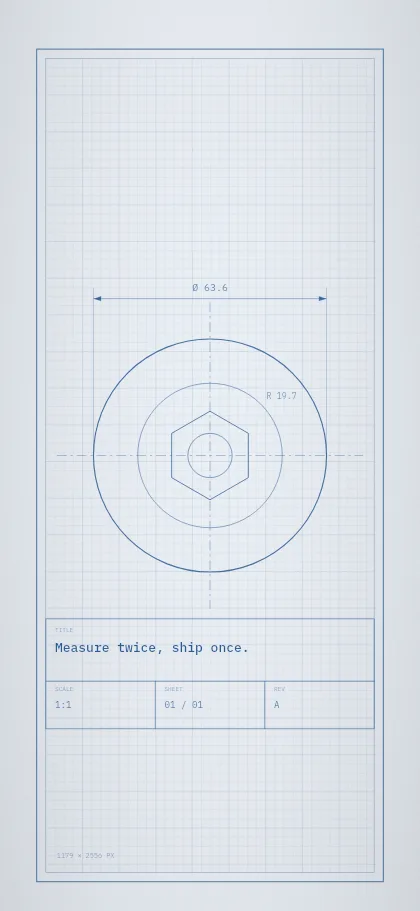
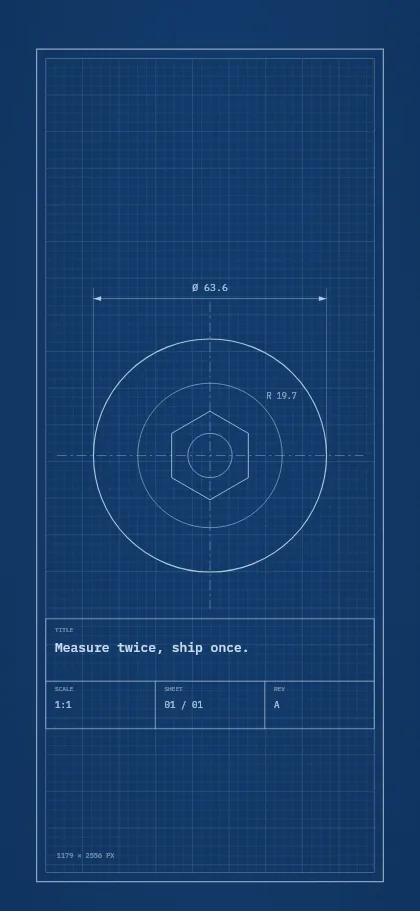
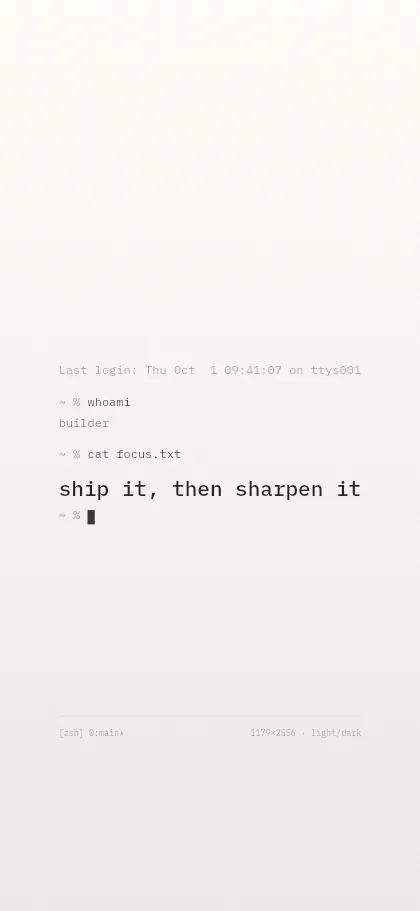
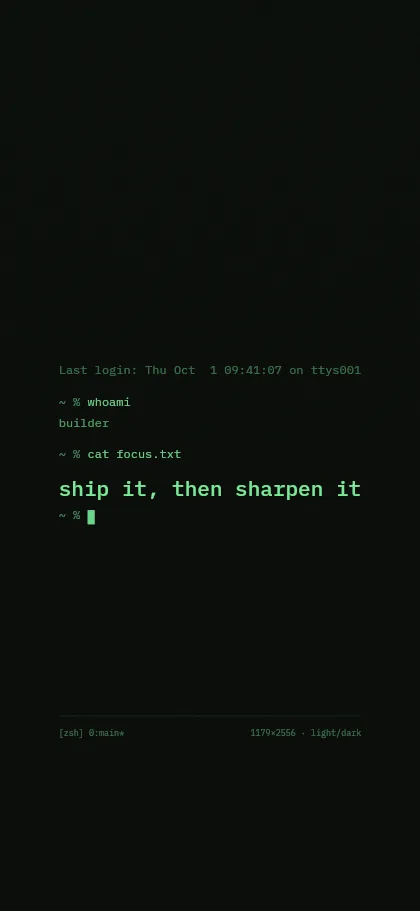
If you want to see whether scaling is happening, pick a template with fine lines. The grid of Cutting Mat lands on whole pixels. If its lines look soft on your screen, the image is being scaled, and the device setting or display mode is the thing to check. Blueprint with its thin dimension lines and Terminal with small monospaced text show softness just as quickly.
Frequently asked questions
Why is my iPhone Home Screen blurry but the Lock Screen is not?
Because the Home Screen blur is switched on. Open Settings → Wallpaper, tap Customize on the Home Screen side and turn off Blur.
Why is only the top of my Lock Screen wallpaper blurry?
The picture does not reach the top of the screen, usually because it is too small or was zoomed out and moved down. iOS fills the missing area with a blurred band. Use an image in your iPhone's native resolution and leave the framing as it is.
Why does my Mac wallpaper look blurry on an external monitor?
Either the image does not match that monitor's native resolution, or the monitor runs in a scaled mode. Use a wallpaper with the monitor's native size, for example 3840 × 2160 for 4K, and check the display mode in System Settings → Displays.
Sources
- Apple Support: Change the wallpaper on iPhone (iPhone User Guide, iOS 26)
- Apple Support: Change your iPhone wallpaper
- Apple Support: Choose your desktop picture on Mac
- SlashGear: Why your iPhone's Home Screen is blurry (and how to fix it)
- SlashGear: Why the top of your iPhone Lock Screen wallpaper is blurry
- 9to5Mac: iOS 26 blurs your wallpaper on the Always-On display
- MacRumors: How to send high-resolution photos in WhatsApp
- Byte Cellar: "4K scaling" is not a problem on modern Macs
- MacMost: The problem with using 1440 screens with a Mac